

How it works
A Defined, Controlled Process for Every Journey
Your rules are set up once. From then on, every journey moves from request to closure through the same checks, and none can skip a stage.
Step 1
Drivers, Vehicles and Rules Are Set Up Once
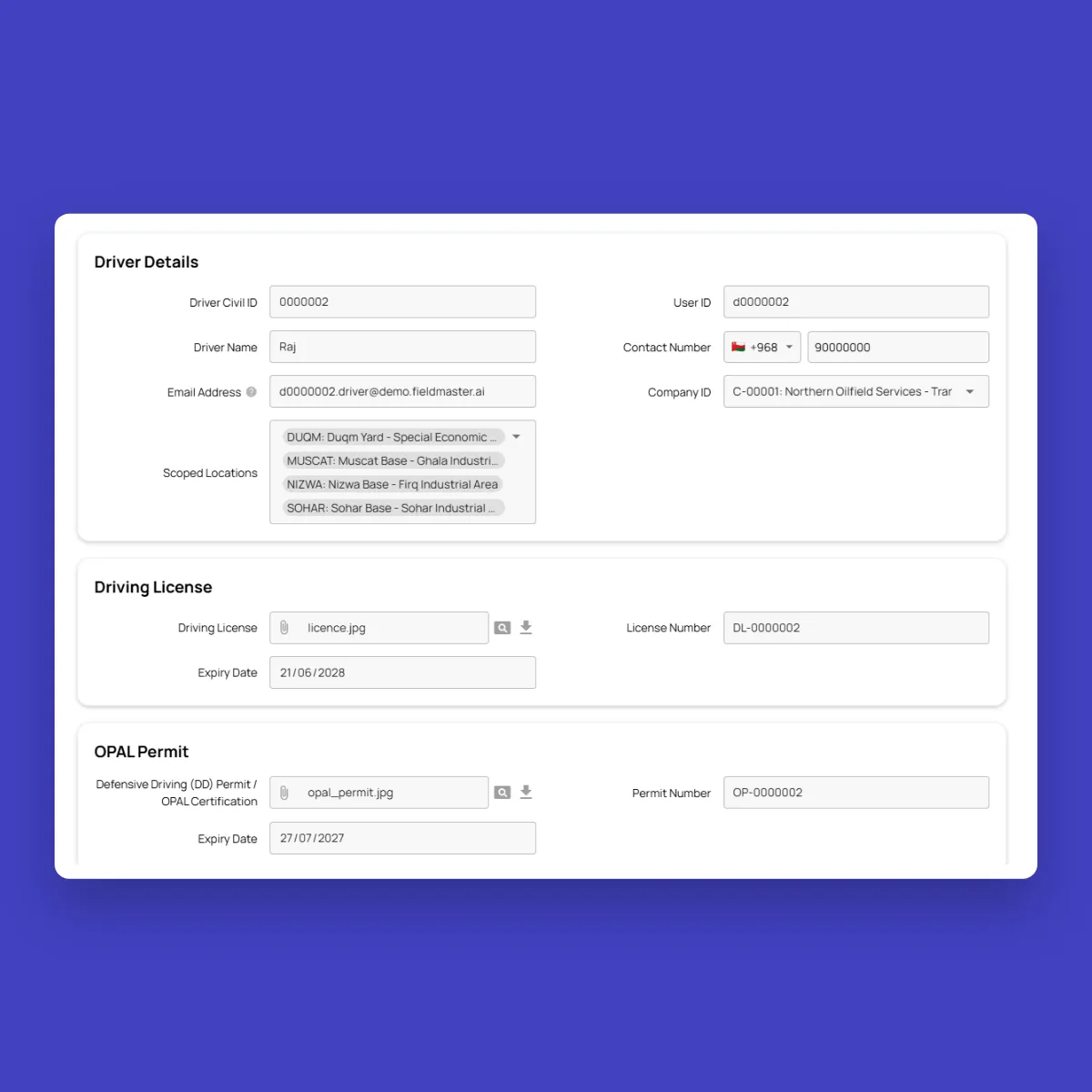
Driver profiles hold ROP driving licences and Defensive Driving / OPAL permits with their expiry dates. Vehicle records hold Mulkiya registration and OPAL RAS certificates, and each driver and vehicle is linked to the company that owns it, so subcontractors sit alongside your own fleet. A location library holds your bases, sites and clients, with each client’s emergency numbers.
We then set up your roles, the conditions that need extra approval, and safety rules such as break intervals, speed limits and geofenced restricted areas. The system enforces them on every trip.
Step 2
The Driver Requests the Journey
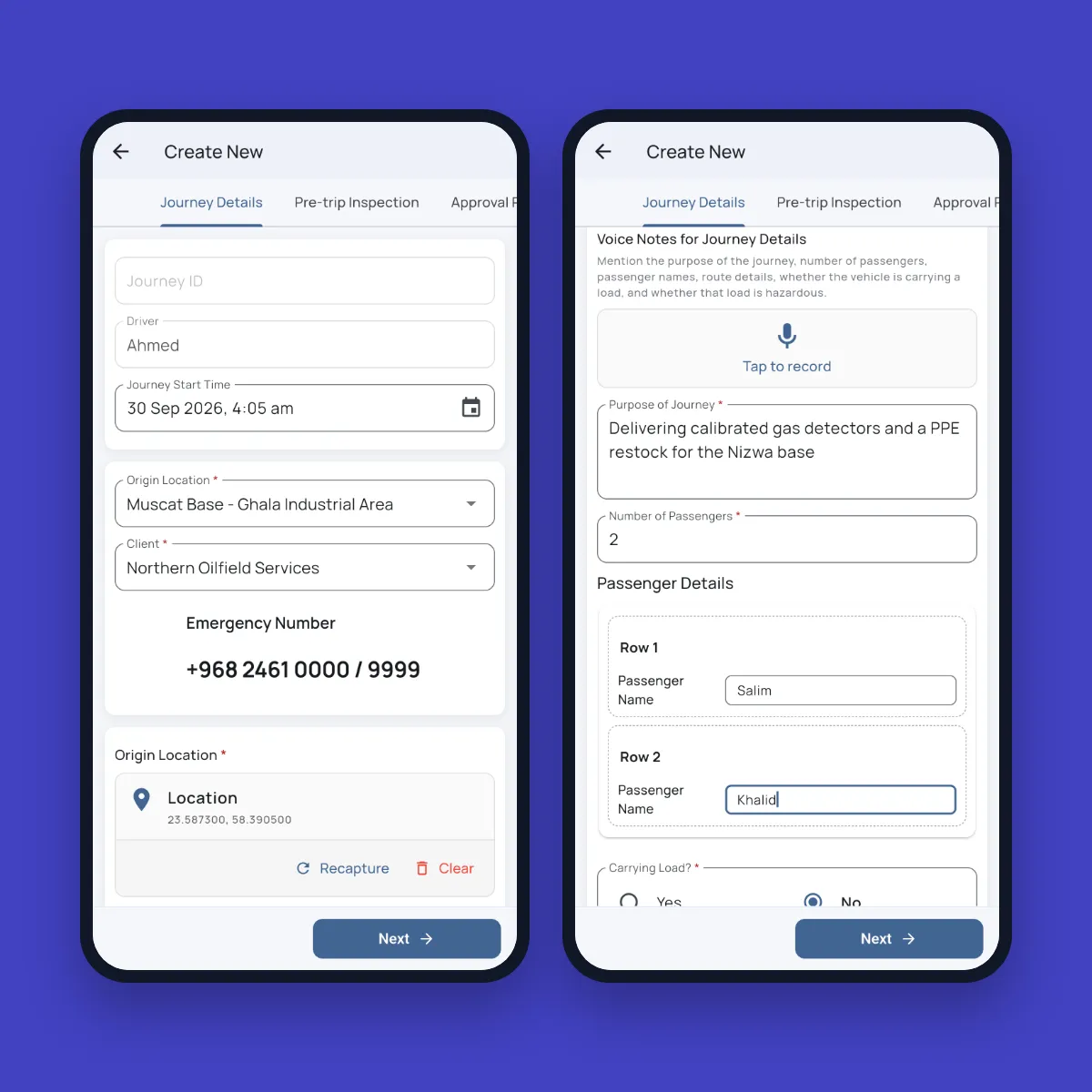
The driver raises the journey in the mobile app, or a Journey Manager raises it on the web, with the start time, origin, waypoints, destination, client and vehicle. Purpose, passengers and load don’t need to be typed: the driver describes them in a short voice note, in Arabic, Urdu, Hindi, Malayalam or any of more than 40 languages, and the fields are filled in English.
Step 3
The Vehicle Is Inspected at the Vehicle
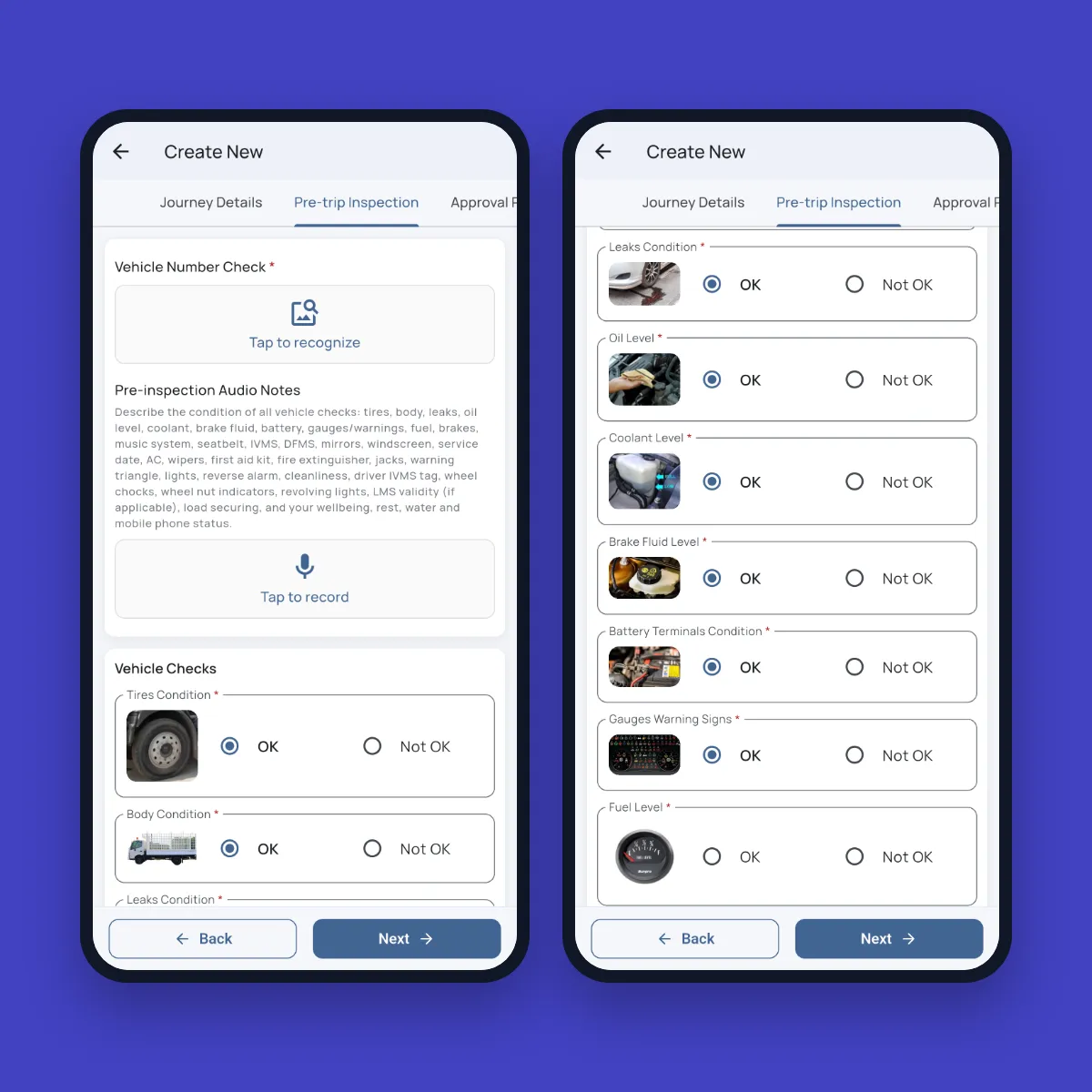
The pre-trip inspection is part of the request. The driver photographs the number plate, and the inspection is blocked if it doesn’t match the vehicle on the request. The checklist covers tyres, brakes, fluids, lights, safety equipment and more, with extra checks for heavy vehicles and for securing a load, and can be answered by voice or by hand. The driver confirms they are fit to drive and rested, adds photos and signs. A hazardous load needs a photo of the TREM card.
If your process needs a separate inspector to sign off the vehicle, that step can be added.
Step 4
Documents and Inspection Are Validated Automatically
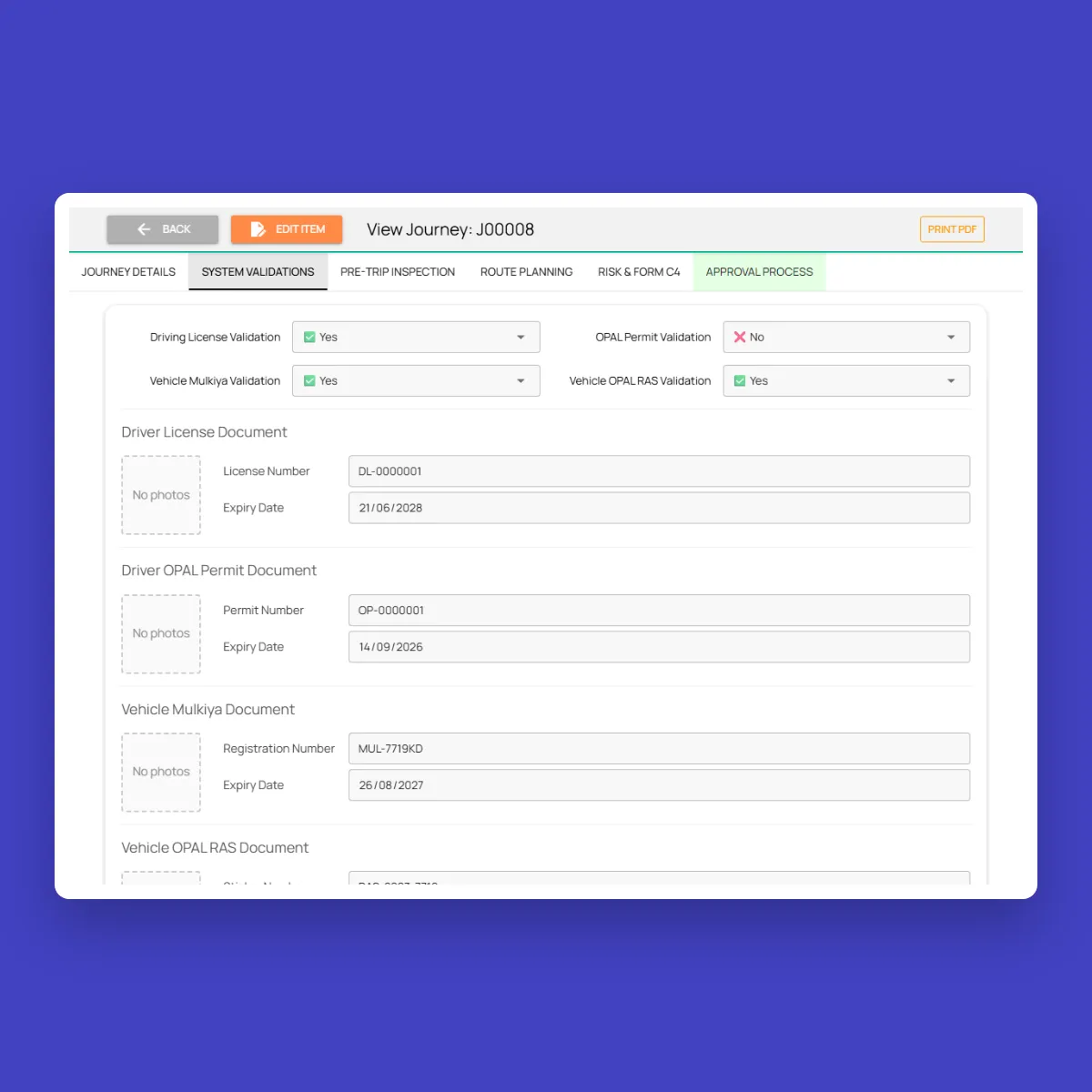
On submission, the system checks the driver’s licence and permit and the vehicle’s Mulkiya and OPAL RAS against their expiry dates, and checks every inspection answer. If anything is expired, missing or failed, the journey stops with the exact reason, such as “Vehicle registration expired”.
The Journey Manager is notified and either rejects the journey or overrides the result with a written reason. Every override stays on the journey record under the manager’s name.
Step 5
The Route Is Planned, Risk-Assessed and Approved
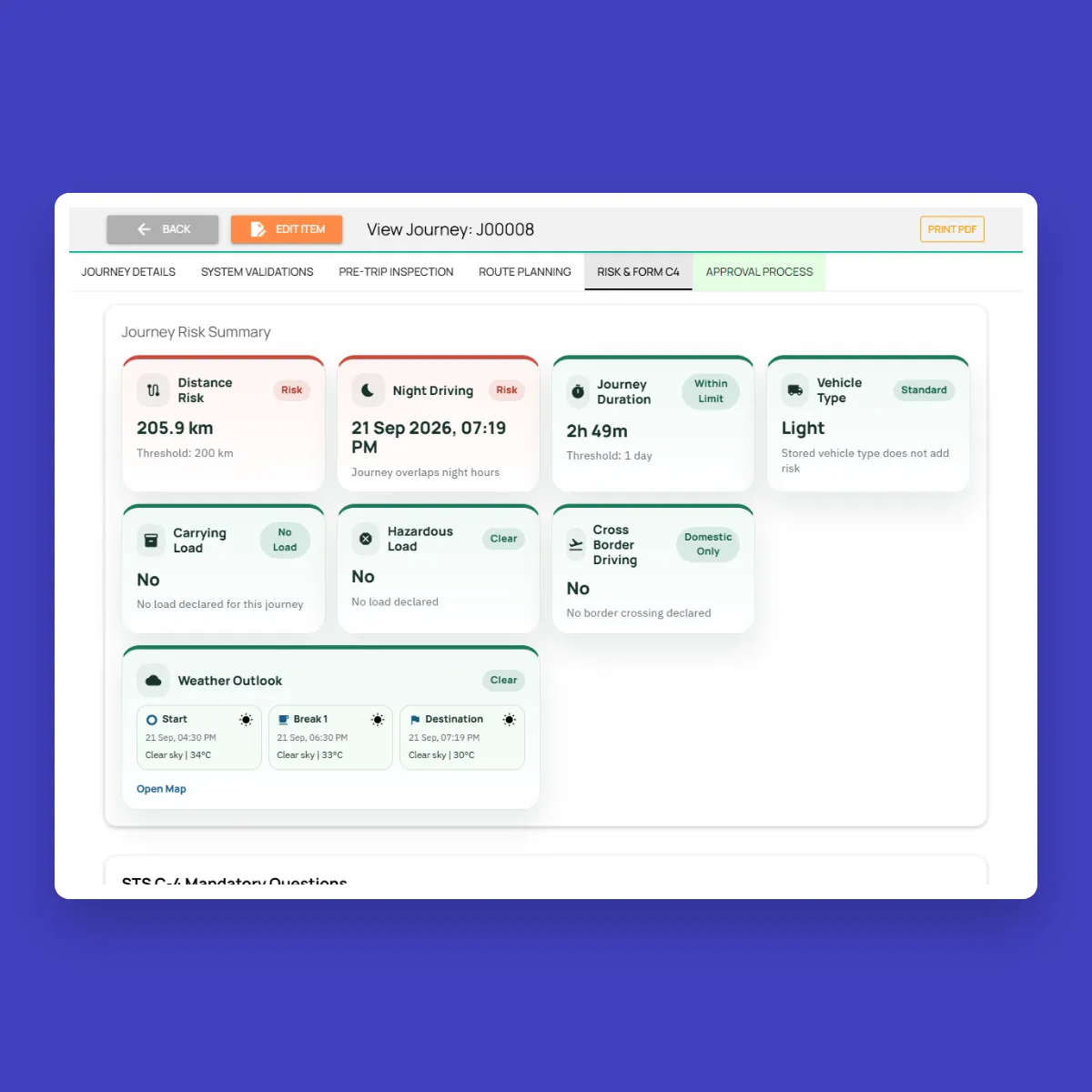
The Journey Manager plans the route on a map. Breaks are added automatically, and a plan can’t go more than two hours between breaks. From the plan, the system works out distance, duration and arrival time, flags night driving, heavy vehicles, hazardous loads and border crossings, and checks the weather forecast at each stop for the time the vehicle will reach it. The Journey Manager completes your mandatory journey questionnaire (e.g. Form C4), including road condition, phone coverage and security, and signs.
A low-risk daytime journey needs only the Journey Manager’s approval. Higher risk sends it on to an Authorizing Person, and night driving or security issues add a BU Head or Project Manager. A journey can’t be approved if the driver isn’t fit to drive or the load isn’t secured, and no driver or vehicle can be approved for two journeys that overlap.
Step 6
The Journey Is Tracked and Closed With a Full Record
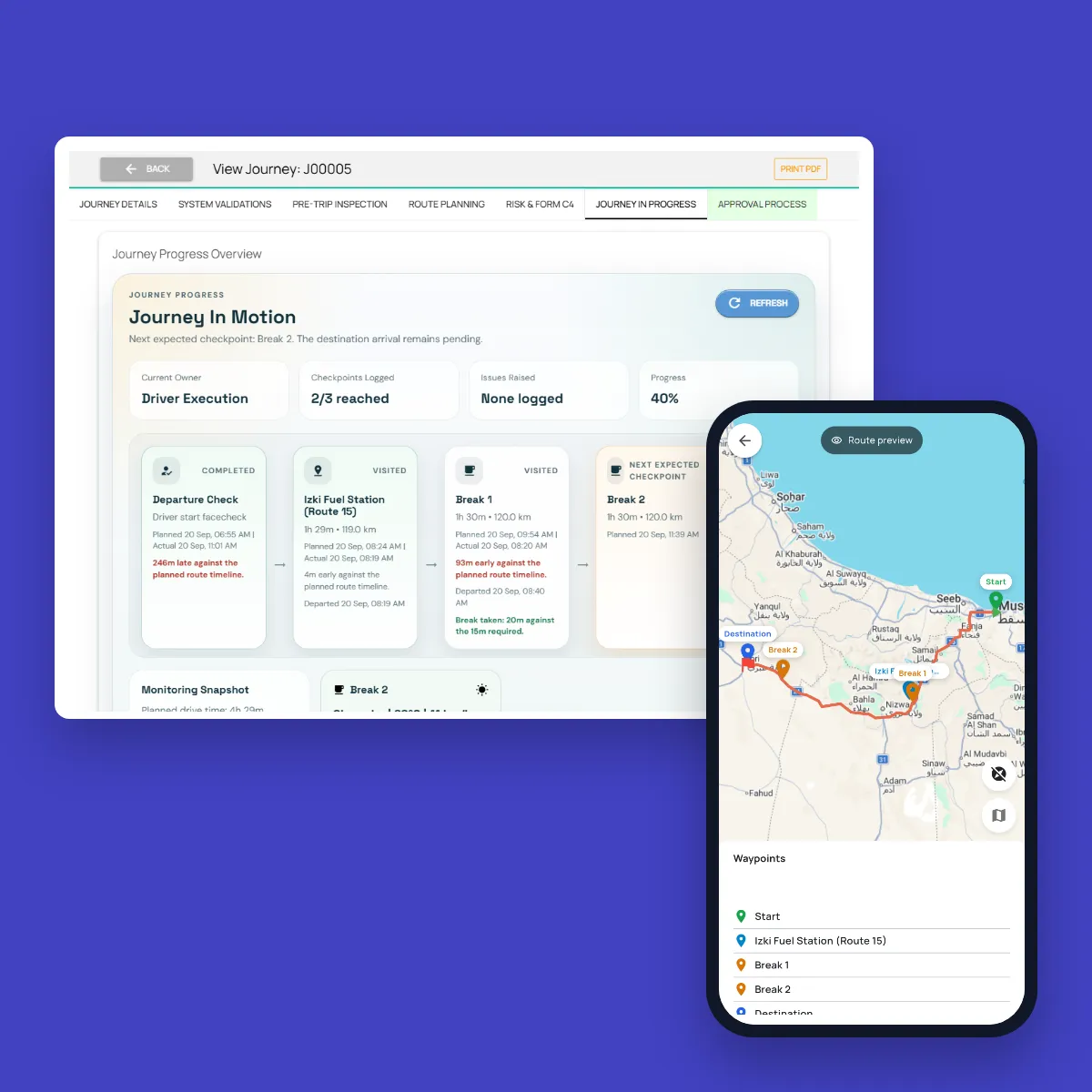
The driver starts the approved journey on their phone with a face check, and the phone records the route from there. It keeps recording without signal and syncs when the signal returns. Managers see the planned route next to the actual one, with flags for short or missed breaks, speeding, route deviations, unplanned stops and gaps in tracking. Drivers report problems on the road by voice, with photos.
When the driver completes the journey, it goes back to the Journey Manager who approved it. The close-out report sets planned against actual, with breaks, risks and driver feedback, and the journey is closed as a time-stamped record ready for audits and investigations.
Rollout
From Setup to First Journey in Under Two Weeks
No long deployment and no heavy IT involvement: a structured rollout, with real journeys running through the system within about ten days.
Days 1–2: resources
Companies, drivers, vehicles and locations are configured in the system.
Days 3–4: roles and approvals
Roles, risk rules and approval levels are set up for your teams.
Days 5–6: training
Drivers and managers are trained on requests, inspections, approvals and close-out.
Days 7–10: pilot
Pilot journeys run in real conditions to validate the workflows.
Go live
All journeys move through the system, with full control and oversight.
FAQ
Questions About the Workflow
Do we have to change our existing journey management process?
No. Fieldmaster.ai is configured around the structure you already follow: your roles, approval levels, questionnaires and safety rules. It organizes and enforces your process rather than replacing it.
Can different journeys follow different approval rules?
Yes. Approval levels follow each journey’s risk. A short daytime trip needs only the Journey Manager, while a night-time, cross-border or bad-weather journey is escalated automatically. The triggers are set to match your rules.
What happens if a driver’s permit or a vehicle document has expired?
The journey stops at validation, before anyone approves it, and the exact reason is shown. The Journey Manager can reject it, or override it with a written reason that stays on the record. Expiry dates are also watched on the dashboard, and reminders can go out before documents expire.
How much training do drivers need?
Very little. Drivers use one app on Android or iOS, in their own language, and can speak instead of typing. Training is part of the rollout, and teams are running pilot journeys within the first two weeks.