Field Attendance

Face Recognition Attendance for Field Crews, Even Workers Without a Phone

Workers clock in on their phone with a face check, inside the fence of the site they’re at, and crews without phones are clocked in by their supervisor. As the supervisor clocks out, they send you photos and a voice note of the site, so you see how the work is going without driving there. Rosters turn every clock-in into present, late, absent or overtime, and at month end the timesheets become your WPS salary file.

Construction worker in a yellow hard hat and safety vest using a smartphone and holding a clipboard at a building site.

The problem

Why Attendance Breaks Down Away From the Office

A fingerprint or face terminal works at a gate that everyone passes. Field crews start at dozens of sites, towers, warehouses and roadside jobs, so attendance falls back to a sheet signed by the foreman, a message in a group chat, or a call to the office.

Nobody can say for certain who reached which site, and when, and the only way to see how the work is going is to drive there. Workers sign in for absent colleagues, hours are argued over at the end of the month, salaries are worked out from spreadsheets, and when a client asks how many people you sent to their site, the answer comes from memory.

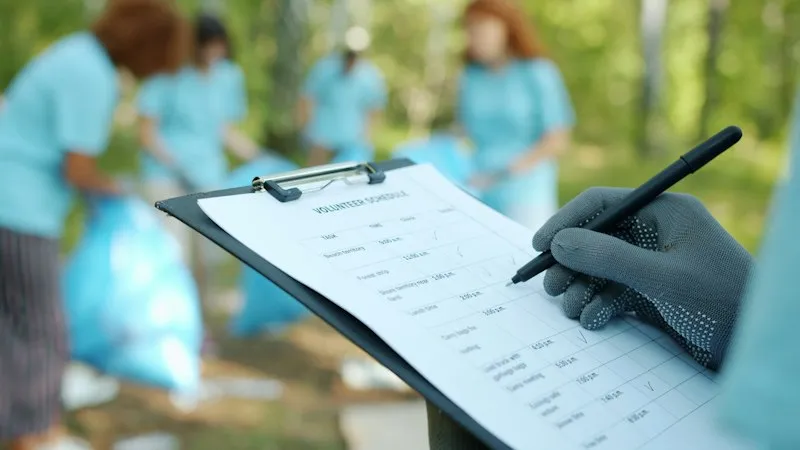
A gloved hand filling in a paper checklist on a clipboard outdoors

How it works

From Clock-In to Salary File

Each step happens on the phone or in the web console, with nothing to install on site.

  1. Set up sites

    Add each site, draw its fence on the map and choose what happens outside it.

  2. Clock in

    Workers take a face check on their phone. The phone picks the site they’re standing in.

  3. Clock in the crew

    Supervisors clock in workers without phones from their own phone, one face after another.

  4. Inspect the site

    As they clock out, supervisors send photos and a voice note of the site, on the schedule you set.

  5. Compare with the roster

    Each day is marked present, late, absent or overtime, and anything unusual is flagged.

  6. Pay

    Timesheets add up each worker’s month and make the WPS salary file for your bank.

Mobile app

Clock In on the Phone, See the Whole Day in the Office

Workers see one button: Clock In, then Clock Out. The face check, the location and the site are taken care of on the phone, even without signal, and the clock-in reaches the office as soon as it syncs.

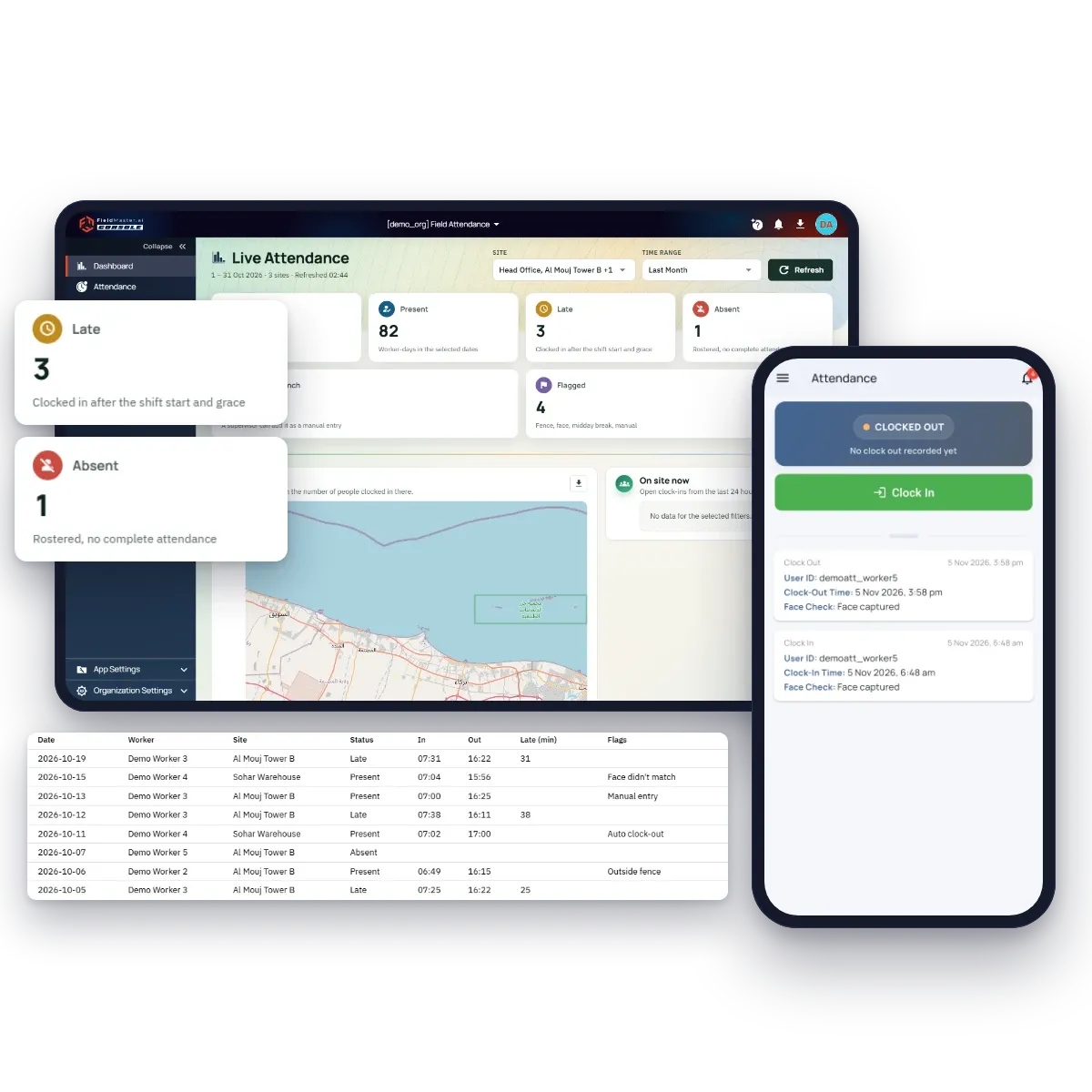
In the office, the dashboard shows who is on site right now, who was present, late or absent for the dates you pick, and a list of the days that need a look: a late arrival, a face that didn’t match, a clock-in outside the fence or a missed clock-out.

Fieldmaster.ai attendance dashboard with present, late, absent and flagged counts and a list of exceptions, next to the Fieldmaster Pocket attendance screen with its Clock In button

Site inspection

Photos From Every Site, Every Day, Without Driving There

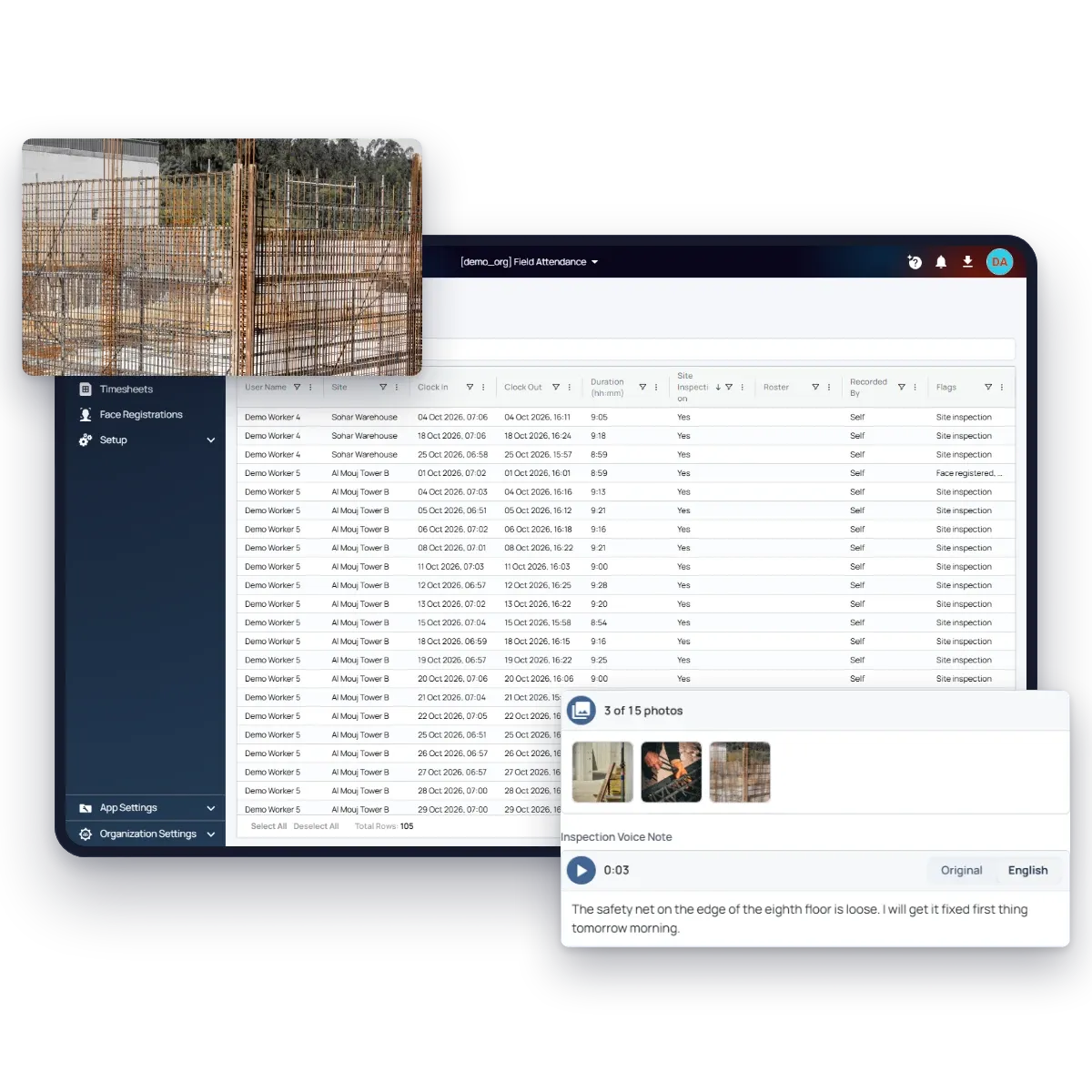
You send crews to a dozen sites and can visit two of them a day. With site inspection, the site comes to you: as the supervisor clocks out, they take up to 15 photos of the work and record a voice note of what was done and what’s holding things up. They speak in their own language, and you read it in English.

Each site reports as often as you need: every day, on chosen days of the week, or on chosen dates of the month. Every inspection comes with the clock-out it was taken at, so you know who took it, when and where. Make it mandatory, and nobody due to inspect can clock out without a photo, and a day that was missed is asked for at the next clock-out. The Sites list shows which sites are up to date and which are overdue.

Fieldmaster.ai attendance list with a site inspection on each clock-out, a supervisor’s photo of the rebar at a tower site, and one inspection’s three photos with its voice note translated into English: the safety net on the edge of the eighth floor is loose

Workers without phones

No Phone? The Supervisor Clocks the Crew In

Many workers don’t have a smartphone, or aren’t allowed one on site. Their supervisor opens Crew Clock-In and points the phone’s camera at each worker in turn. The phone recognises each face among your registered workers and fills in the name, so a crew of twenty is clocked in at the gate in minutes.

Every worker still gets a clock-in and clock-out of their own, marked as recorded by the supervisor. A face that doesn’t look like the chosen worker, or a crew outside the fence, is flagged for review instead of holding up the line, and nobody is clocked in twice.

A crew in orange hi-vis vests and blue hard hats walks together through an industrial plant on a sunny day.

For your clients

Show Your Client the Manpower You Supplied

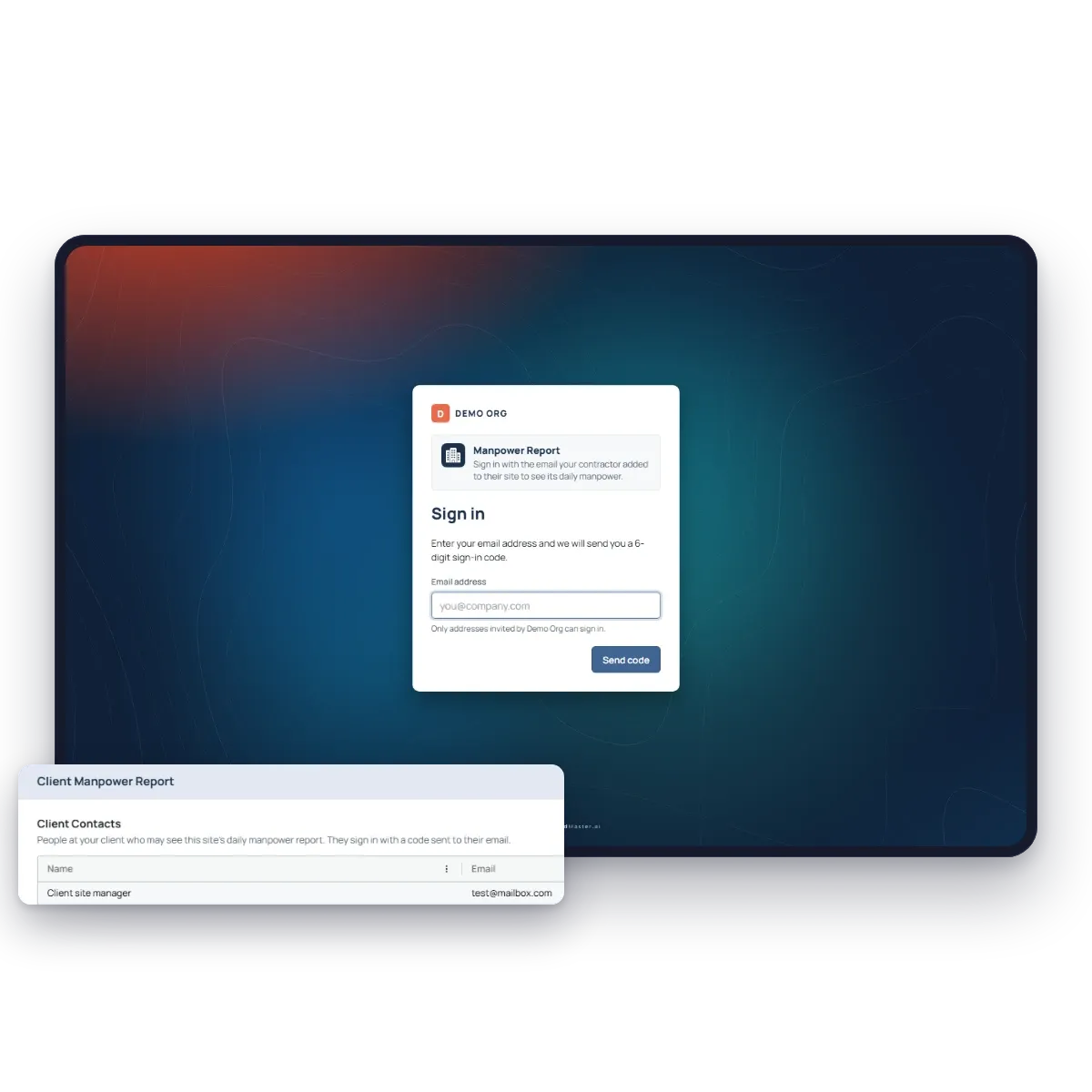
If you supply crews to a client, add their site manager as a client contact on the site. They sign in with a code sent to their email, with no password, and see that site’s Manpower Report: worker-days, people and hours for every day of the month, and who worked. They can download it for their own records.

Only people who clocked in and out at the site, checked by face and location, are counted. When a client asks how many people you sent this month, they already have the answer, from the same clock-ins you pay your workers on.

The Manpower Report sign-in page for a client, which sends a code to their email, and the Client Contacts list on a site

What you get

Attendance You Can Pay Salaries On

Every clock-in shows who it was, where they were and how it was checked, so hours aren’t argued over at month end.

  • Face check with liveness

    Every clock-in is matched to the worker’s registered face, with a blink and head-turn test so a photo can’t stand in.

  • A fence for every site

    Each site decides what happens outside its fence: refuse the clock-in, or allow it with a reason that the supervisor sees.

  • Fake GPS rejected

    Apps that fake the phone’s location are detected, and the server checks every clock-in against the fence again.

  • Works without signal

    The face check runs on the phone. Clock-ins are saved with their time and place, and sync when the signal returns.

  • Rosters, not guesswork

    Shifts and weekly rosters mark each day present, late, absent, left early or overtime, with leave and day swaps per date.

  • WPS salary file

    Timesheets add up each worker’s month, and make the salary file in the Oman WPS or UAE SIF format.

  • In the worker’s language

    Pocket runs in more than 40 languages, including Arabic, Hindi, Urdu, Bangla and Tagalog.

  • No tracking through the day

    Location is taken at clock-in and clock-out only. Supervisors see the sites they manage, and nothing else.

Phone or terminal

Attendance on the Phone vs a Terminal at the Gate

A terminal suits one entrance. Field crews need attendance wherever the work starts.

Terminal at the gateFieldmaster on the phone
Where it worksTerminal at the gate

At the one place the device is installed.

Fieldmaster on the phone

At any site, inside the fence drawn for it.

HardwareTerminal at the gate

A device per entrance, with power, network and upkeep.

Fieldmaster on the phone

The Android phones and iPhones your workers already carry, or one supervisor’s phone for a crew without them.

Who clocked inTerminal at the gate

Fingerprint or face at the device.

Fieldmaster on the phone

Face check with a liveness test on the phone.

Proof of placeTerminal at the gate

Where the device is fixed.

Fieldmaster on the phone

GPS position checked against the site fence, with fake GPS rejected.

Site photosTerminal at the gate

None.

Fieldmaster on the phone

Photos and a voice note from the supervisor at clock-out, on the schedule each site sets.

Your clientTerminal at the gate

Reports exported and sent on request.

Fieldmaster on the phone

Your client signs in and sees the manpower at their site, day by day.

At month endTerminal at the gate

Punch logs to export and match against the roster by hand.

Fieldmaster on the phone

Late, absent and overtime worked out from the roster, timesheets and the WPS salary file.

Payroll

From Clock-Ins to the WPS Salary File

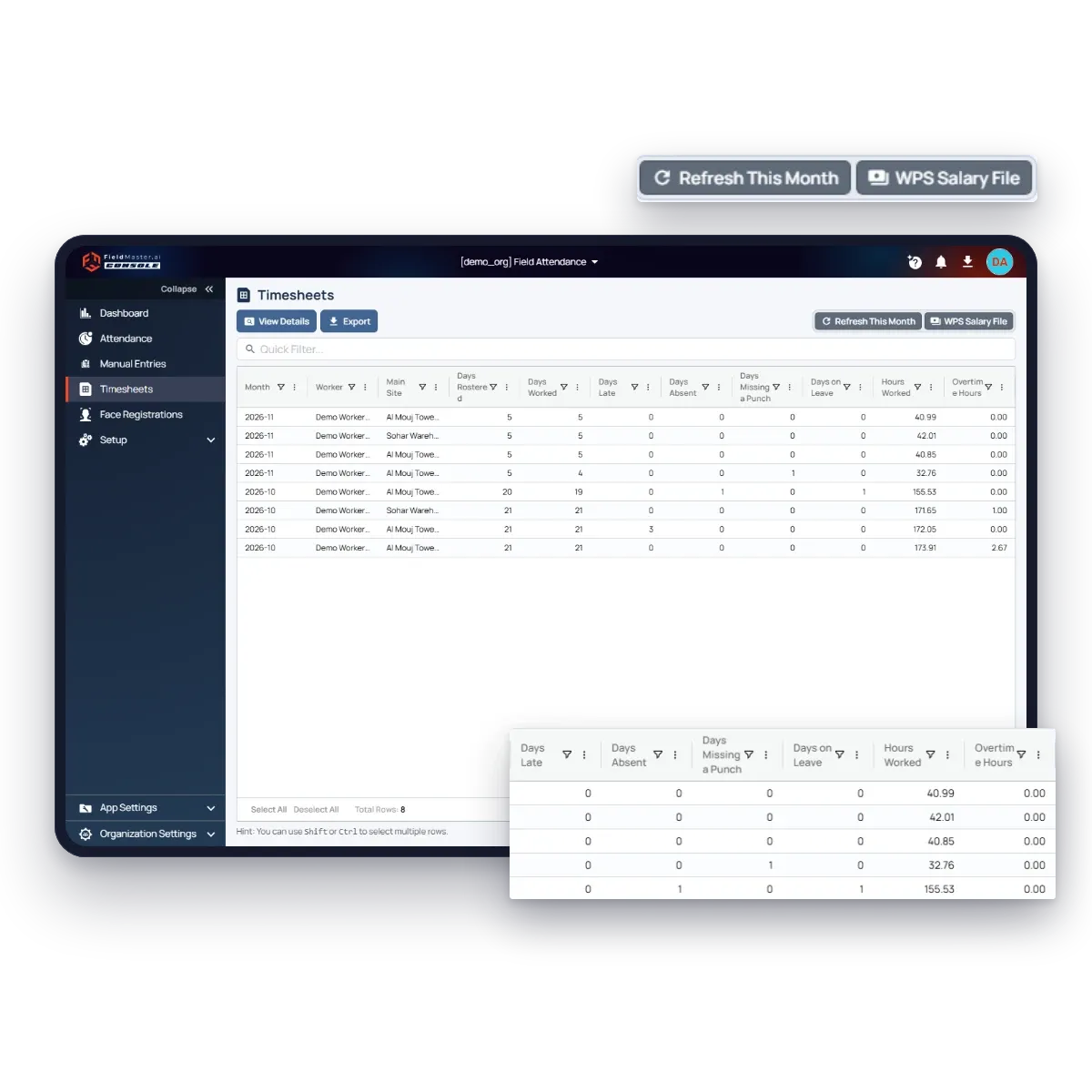
Every night, each worker’s month is added up from their clock-ins and the rosters: days worked, late, absent and on leave, hours worked and overtime hours. Fix a missed punch with a manual entry, or mark leave on the roster, and the timesheet follows.

At month end, select the workers to pay and download the salary file in the Oman WPS or UAE SIF format, ready to upload to your bank. Absent days are deducted where you choose, and overtime is paid at each worker’s own rate.

Fieldmaster.ai timesheets with each worker’s days rostered, worked, late, absent and on leave, hours and overtime, and the WPS Salary File button

FAQ

Face Recognition Attendance Questions

What is a face recognition attendance system?

A system that records when each worker starts and ends work, and confirms who they are by their face instead of a card, a PIN or a signature. Fieldmaster runs it on a phone, either the worker’s own or the supervisor’s for workers without one, so it works at any site, and adds the GPS location and a check against the site’s fence.

Is this a biometric attendance system?

Yes. Each clock-in is confirmed by the worker’s face, with a blink and head-turn liveness test, so a photo or a colleague can’t stand in. The difference from a biometric terminal is where it runs: on a phone, at whichever site the crew is working, instead of on a device fixed at one gate.

Do we need to buy attendance machines?

No. Workers clock in on the Fieldmaster Pocket app on Android or iPhone (iOS 16 or later). There is nothing to install at the site.

What about workers who don’t have a phone, or aren’t allowed one on site?

Their supervisor clocks them in and out with Crew Clock-In on the supervisor’s own phone, pointing the camera at each worker in turn. Each face is recognised among your registered workers, and each worker gets their own clock-in and clock-out record.

How is a worker’s face registered?

By their first clock-in, or by their supervisor’s first crew clock-in. From then on, every face check must match it. If the saved face is wrong, a supervisor resets it from Face Registrations, and the next clock-in registers it again.

Can supervisors send us photos of the site?

Yes. Turn on site inspection for a site and choose when it’s due: every day, on chosen days of the week, or on chosen dates of the month. When it’s due, the site’s supervisor takes up to 15 photos and records a voice note as they clock out. The voice note is written down and translated into English. Make it mandatory, and they can’t clock out without at least one photo.

Can our client see the attendance at their site?

Yes. Add the client’s people as client contacts on the site. They sign in with a code sent to their email and see that site’s Manpower Report: worker-days, people and hours for each day, and who worked. They see only the sites you add them to.

Is there a limit on sites or supervisors?

No. Add every site you work at, with as many admins and supervisors as you need.

Can a worker clock in for a colleague?

Every clock-in needs a face that matches the worker’s registered face, with a liveness test, and the GPS position is checked against the site fence. Apps that fake the location are rejected. Crew Clock-In is open only to supervisors and admins.

Does it work without mobile signal?

Yes. The face check runs on the phone, and the clock-in is saved with its time and location, then synced when the connection returns.

Does it track workers’ location during the shift?

No. The location is taken at clock-in and clock-out only, to check the site fence. Nothing runs in the background between them.

Can attendance go to our payroll?

Timesheets export to Excel, and make the salary file in the Oman WPS or UAE SIF format for your bank. For a direct link to your HR or payroll system, get a quote.