
How it works
Six Steps From Task List to Verified Meter Work
Replacements and readings move from your task list to the technician and back into the system, checked and photographed at every step.
Step 1
Set Up Task Types, Checks and Outcomes Once
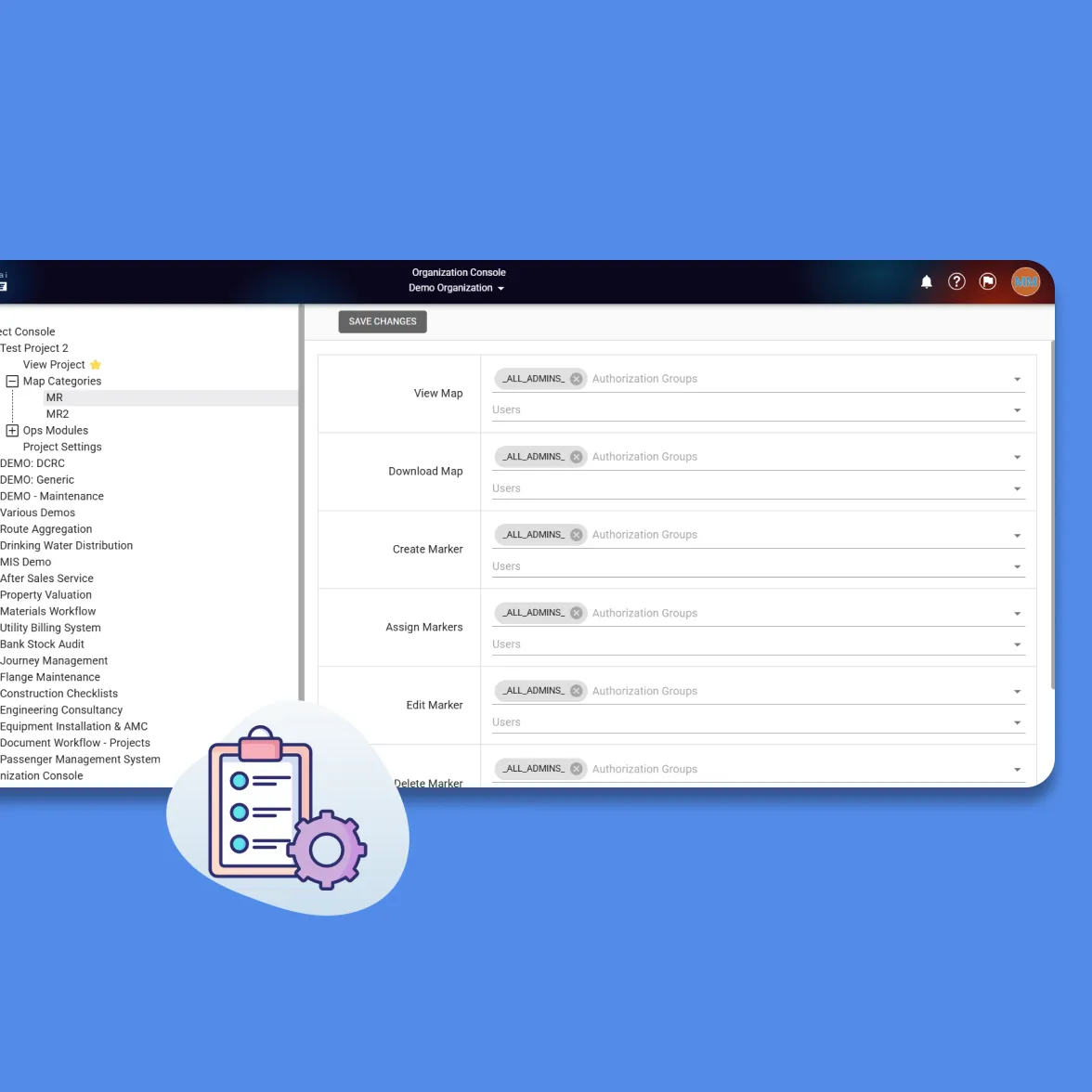
Define your task types, such as prepaid meter replacements, smart meter replacements and reading rounds, with the fields, photos and checks each one needs. Set the visit outcome codes, roles and any approval steps, and the same rules apply to every technician and every job.
Step 2
Load Your Replacement and Reading Lists
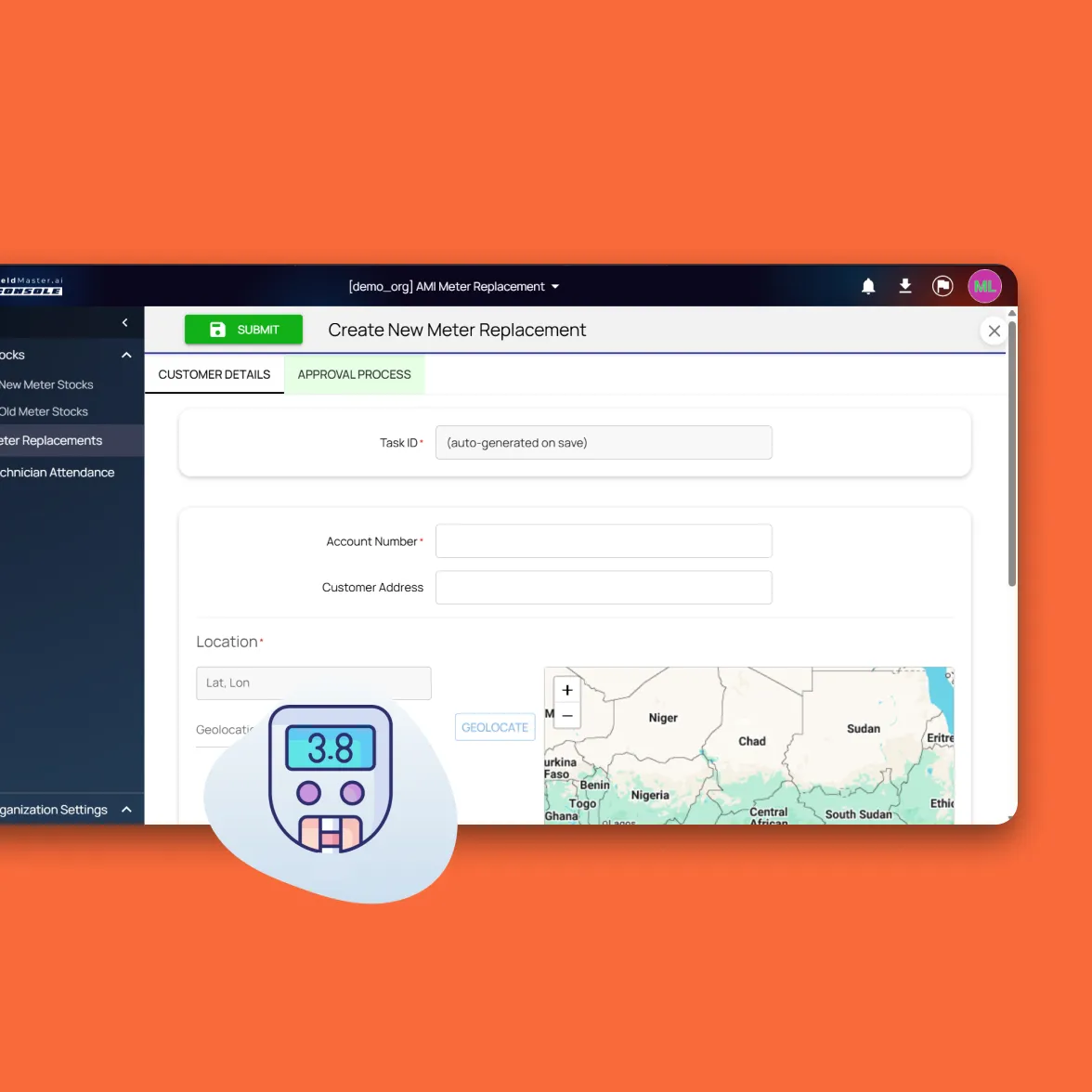
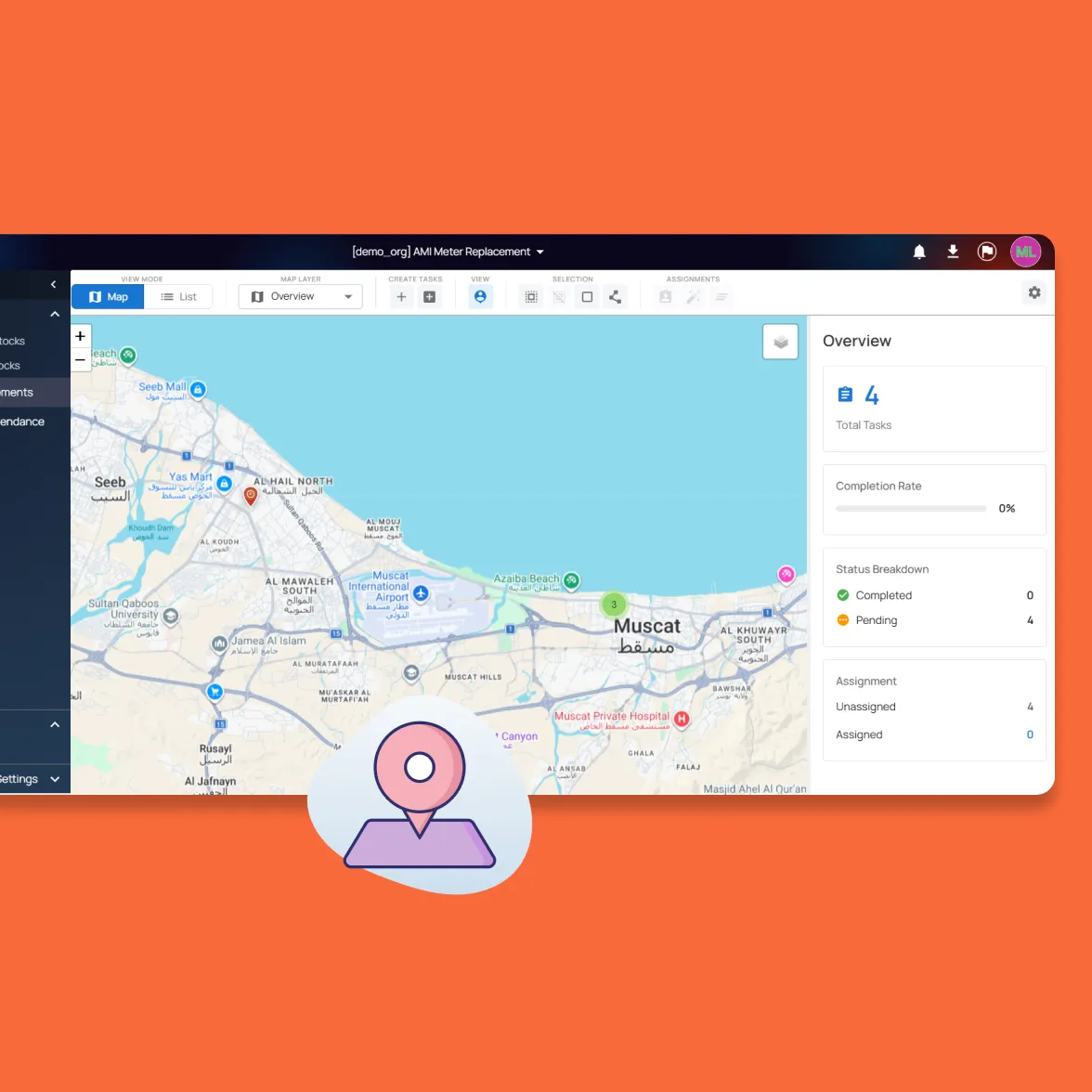
Import a task list from Excel, create tasks from your customer accounts, or add one at a time. Enter the account number and the platform fills in the customer and expected meter details, and the address is placed on the map.
Step 3
Route and Assign Technicians
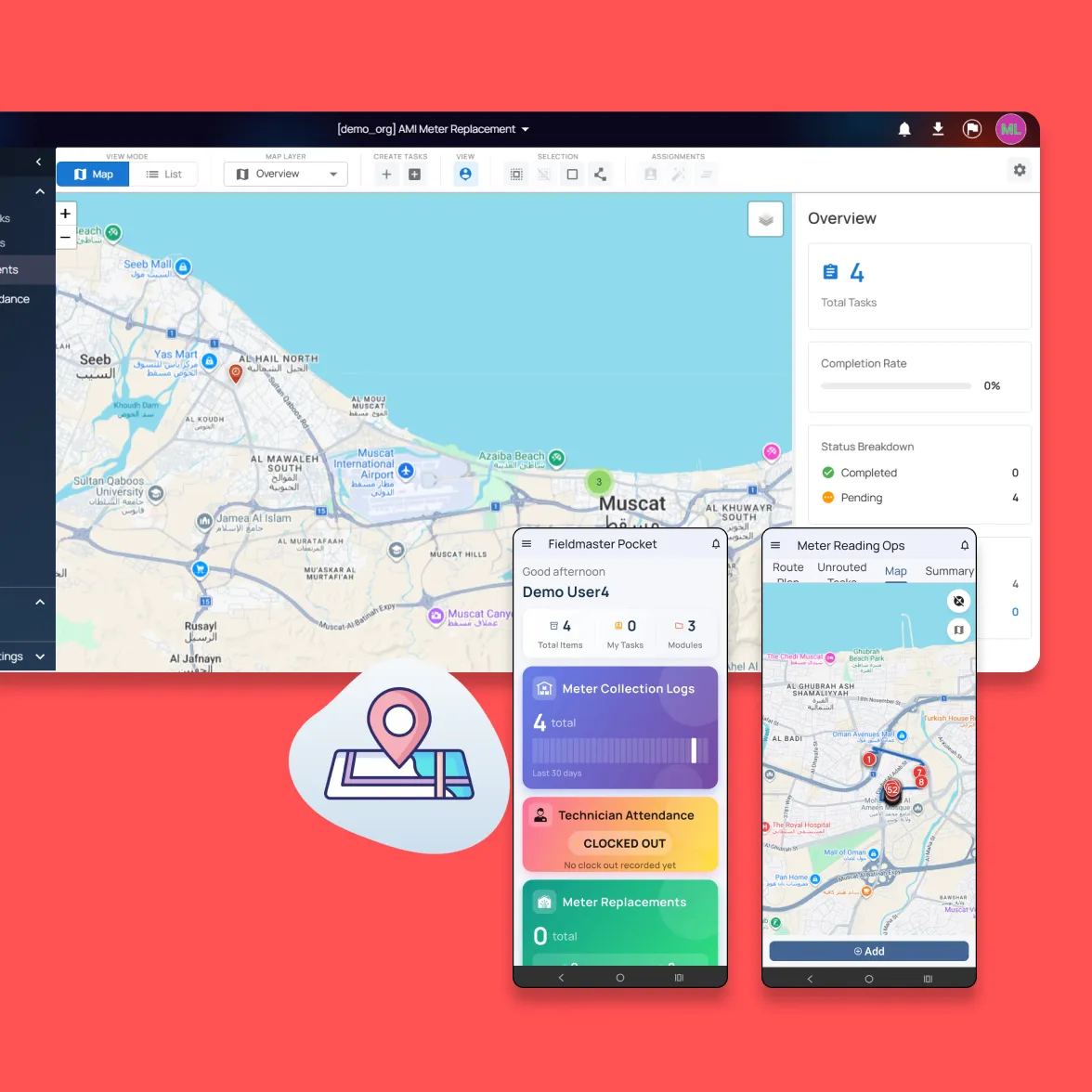
Supervisors assign tasks by area, location and workload, or let the platform plan each route around working hours, customer time windows and daily capacity. Replacements that need sign-off can wait for a supervisor’s approval. Technicians are notified on their phone as soon as a task is theirs.
Step 4
Technicians Collect Meters and Start the Day
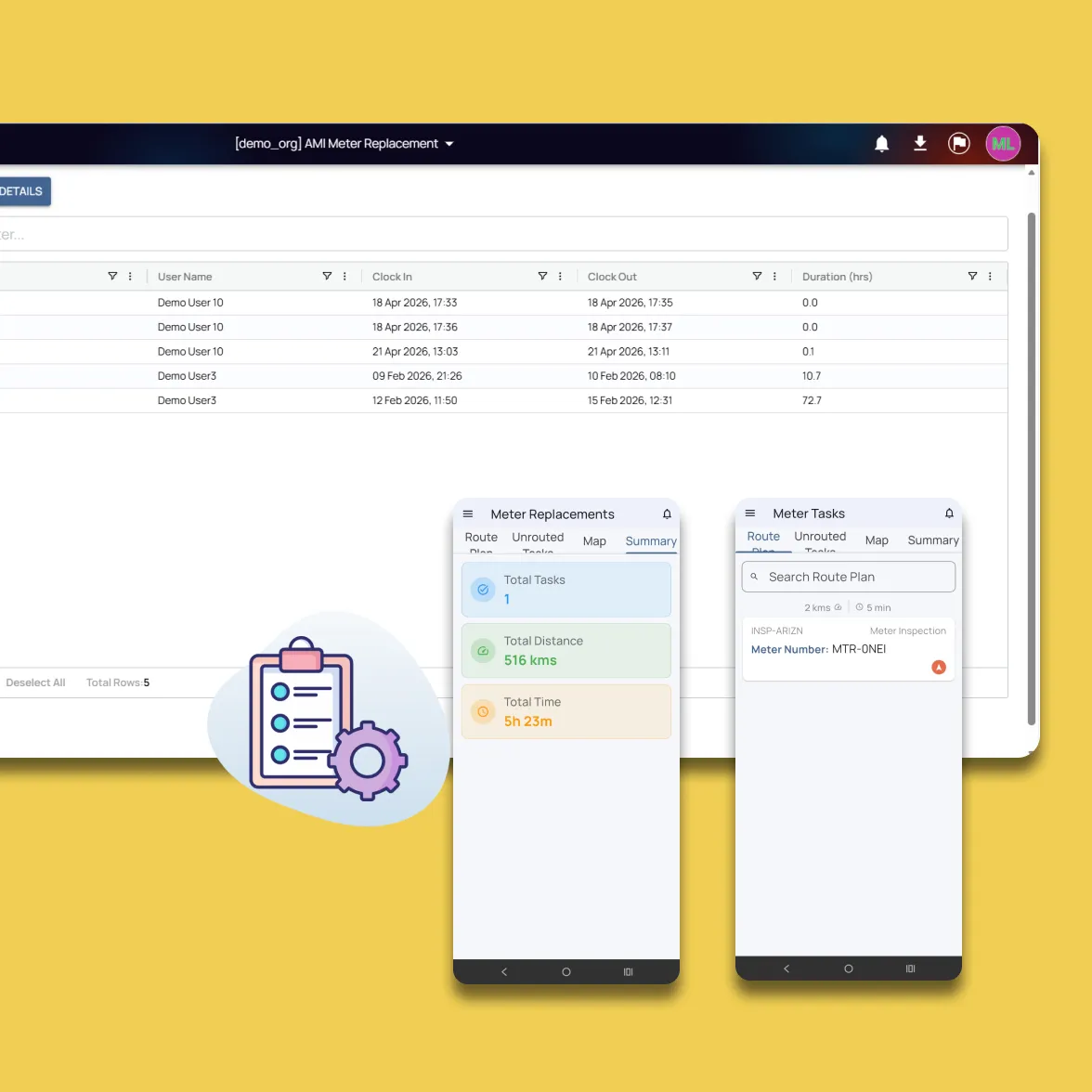
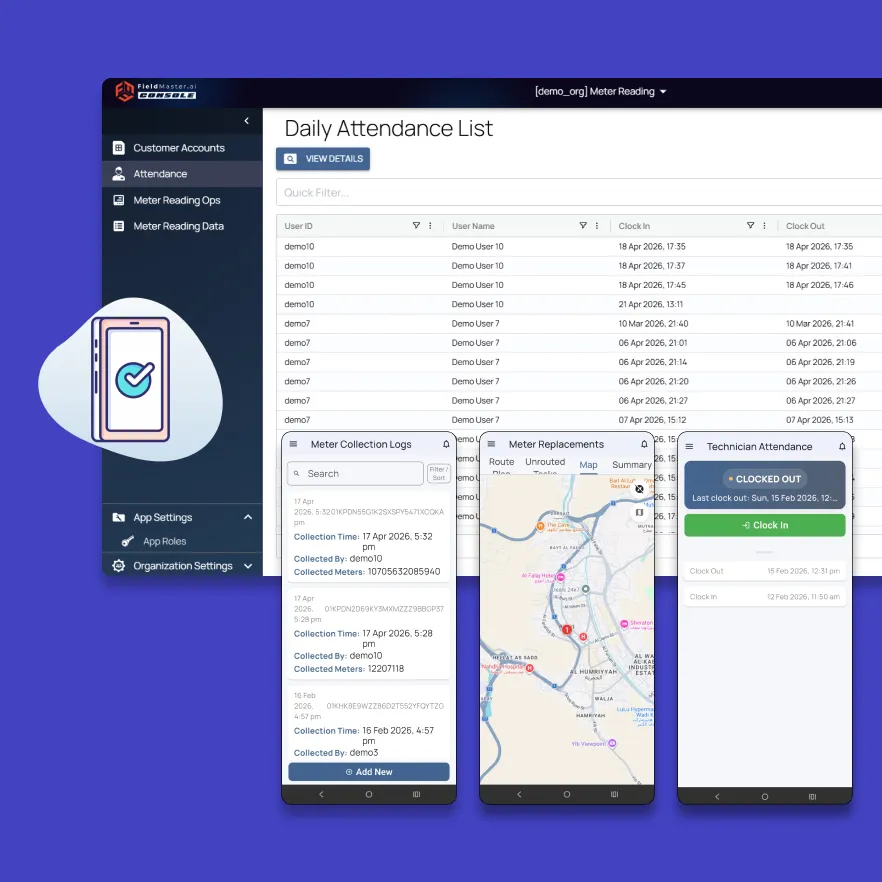
Technicians clock in and scan the new meters they take from the warehouse, so every meter is tracked from stock to installation. Their route for the day is on the phone, with customer details and task notes for each stop.
Step 5
Scan, Check and Photograph at the Meter
On site, the technician first records whether they could get in. If not, they choose a reason and take a GPS-stamped photo as proof of the visit. If they could, they scan the old and new meter, and the app checks the scan against the expected meter and past replacements. A mismatch needs a note before the task can close.
For readings, the app reads the meter from a photo and asks the technician to confirm any reading that is far from the customer’s usual consumption. The office sees the result straight away, not at the end of the day.
Step 6
Track Success Rate and Review Mismatches
The dashboard shows completed and failed visits by technician and by day, with the reason for every failed visit. Supervisors review flagged mismatches and plan revisits, and any chart or task list can be exported to Excel for reporting or invoicing.
Rollout
Live in One to Two Weeks
Most utilities and contractors start live work within one to two weeks, depending on the number of technician teams and the integrations needed.
Days 1–2: Task types and teams
Task types, technician teams and operating areas are set up.
Days 3–4: Checks and outcome codes
Validation rules, visit outcome codes, photo requirements and approval steps are set for each task type.
Day 5: Task lists and meter stock
Your first replacement or reading lists, customer accounts and meter stock are loaded into the platform.
Days 6–7: Training
Supervisors and technicians are trained on the app and the workflows.
FAQ
Questions About the Workflow
How much training do technicians need?
Very little. Most technicians learn the mobile app in a few hours, because each task guides them through exactly what needs to be recorded. Operations staff are trained on the office workflows during rollout.
What happens when the meter on site doesn’t match?
The app compares the scanned meter with the expected meter for that account and with meters already replaced. If they differ, the task shows why, and the technician must add a note before closing it. Supervisors see every flagged task and decide what happens next.
What if the technician can’t get in?
They choose a reason, such as customer not available, access refused, wrong address or meter already replaced, and take a GPS-stamped photo as proof of the visit. The task counts as unsuccessful on the dashboard, with its reason, so you can plan the revisit.
Can meter replacements require approval?
Yes. You decide which task types need sign-off. A replacement can be held until a supervisor approves it, so the technician only goes ahead with proper authorization, and the approval is kept on record.
Do we still need our billing and customer systems?
Yes. Billing and customer systems keep your account records. Fieldmaster.ai handles the field side: task lists, technicians and the evidence for every visit. Task lists come in from those systems, and completed swaps and readings go back as Excel exports or through a direct connection set up on request.
What happens if a technician loses their device?
Nothing is lost. Task data is stored securely on the server, so when the technician signs in on a new device, their tasks and activity history are restored.