
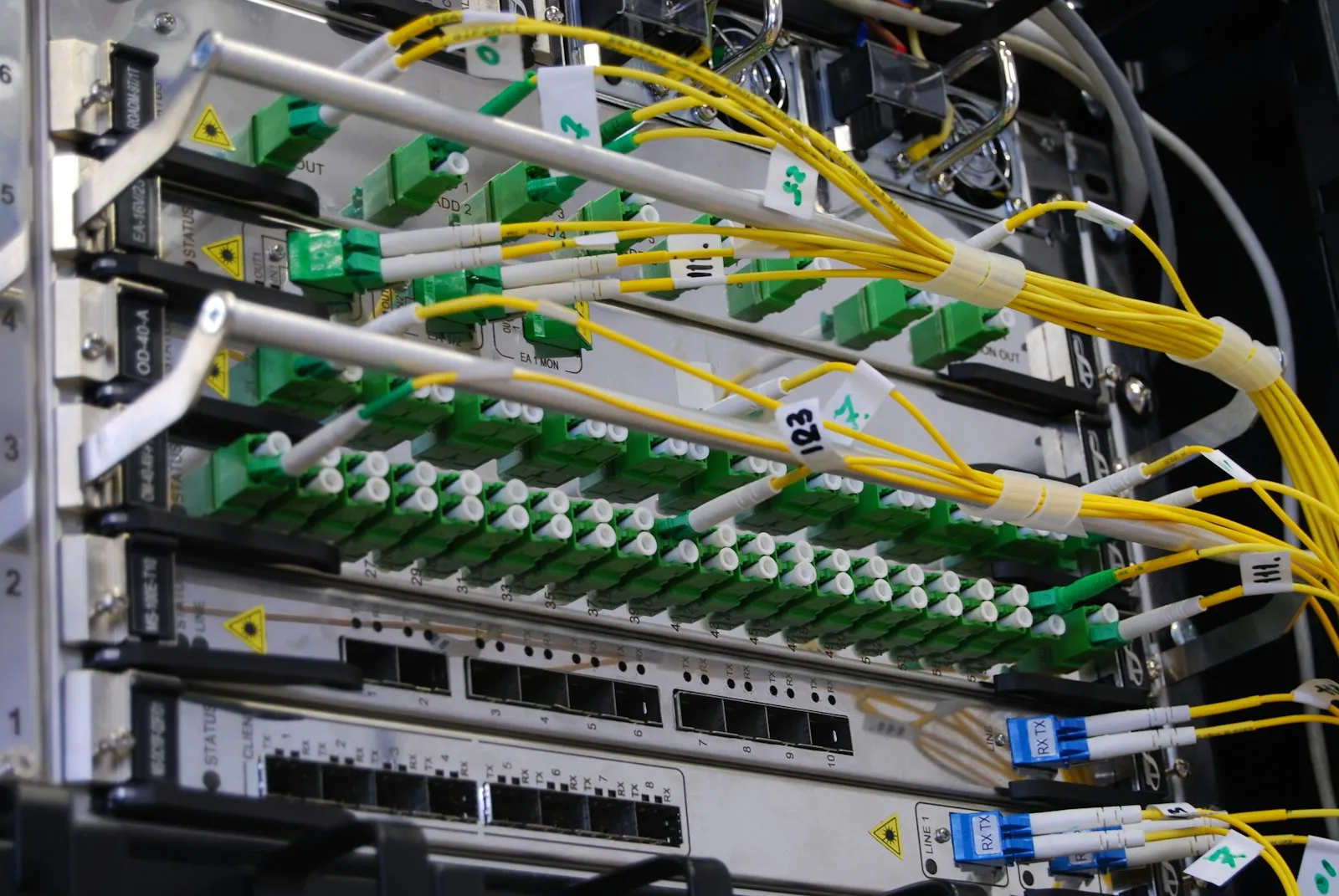
IT Asset ManagementHow it works
The Six-Step IT Asset Workflow
An asset is registered once. From then on, every move is a document: a handover, a return or a service, scanned on the phone where the asset is and closed with a photo.
Step 1
Your Register Comes In From Excel
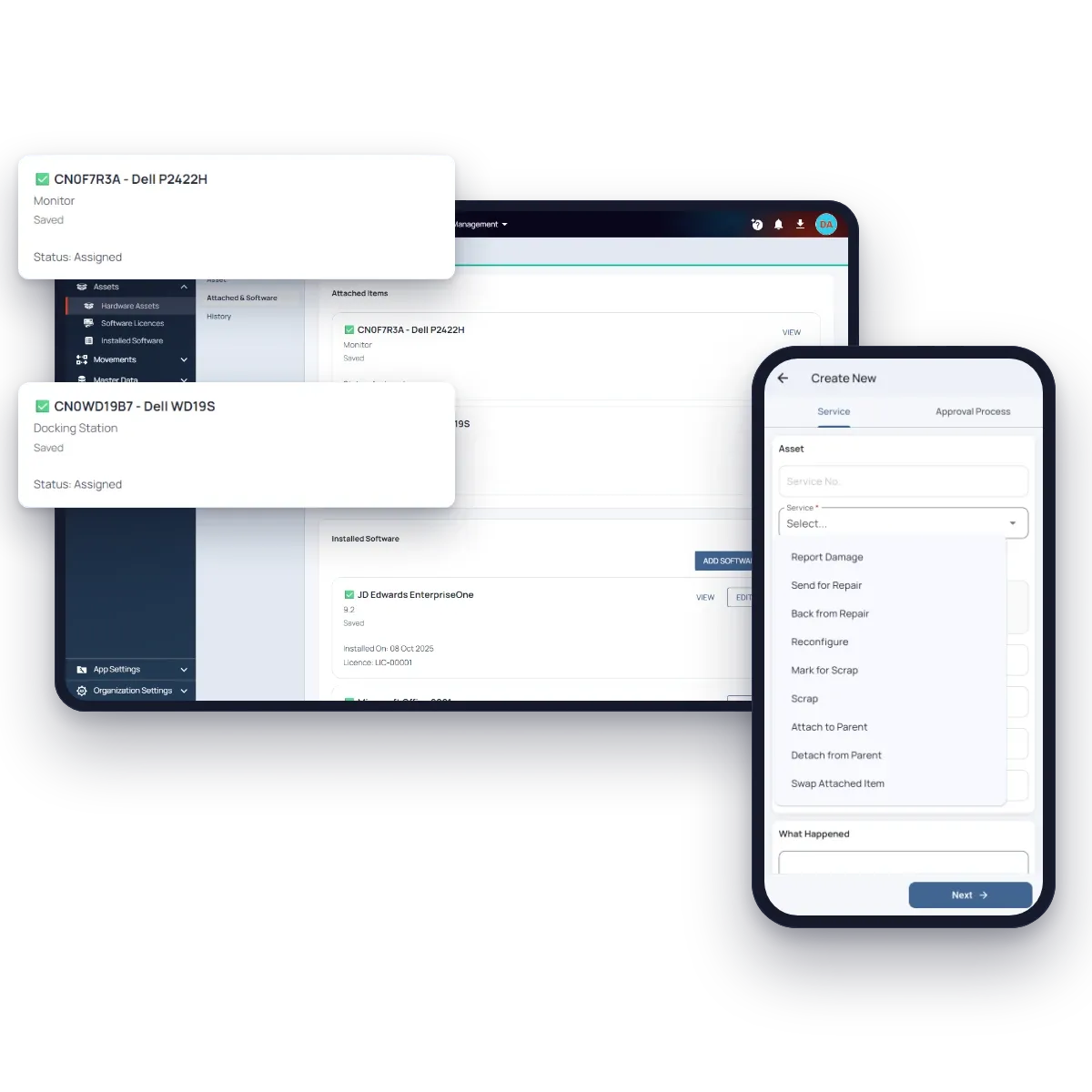
Load your existing register with an Excel file in the columns you keep today: serial number, asset number, system number, processor, RAM, disk, OS and version, IP address, purchase order and warranty. Each asset is keyed by its serial number, which its printed QR label carries, and a scan also finds it by its old asset number.
A monitor or a dock is its own asset, attached to its laptop or desktop. Wherever the parent goes, the attached items go with it, and each keeps its own serial number and history. The software on each machine is recorded against it, with its version and licence.
Step 2
Hand Over on the Phone, Confirmed by the Employee
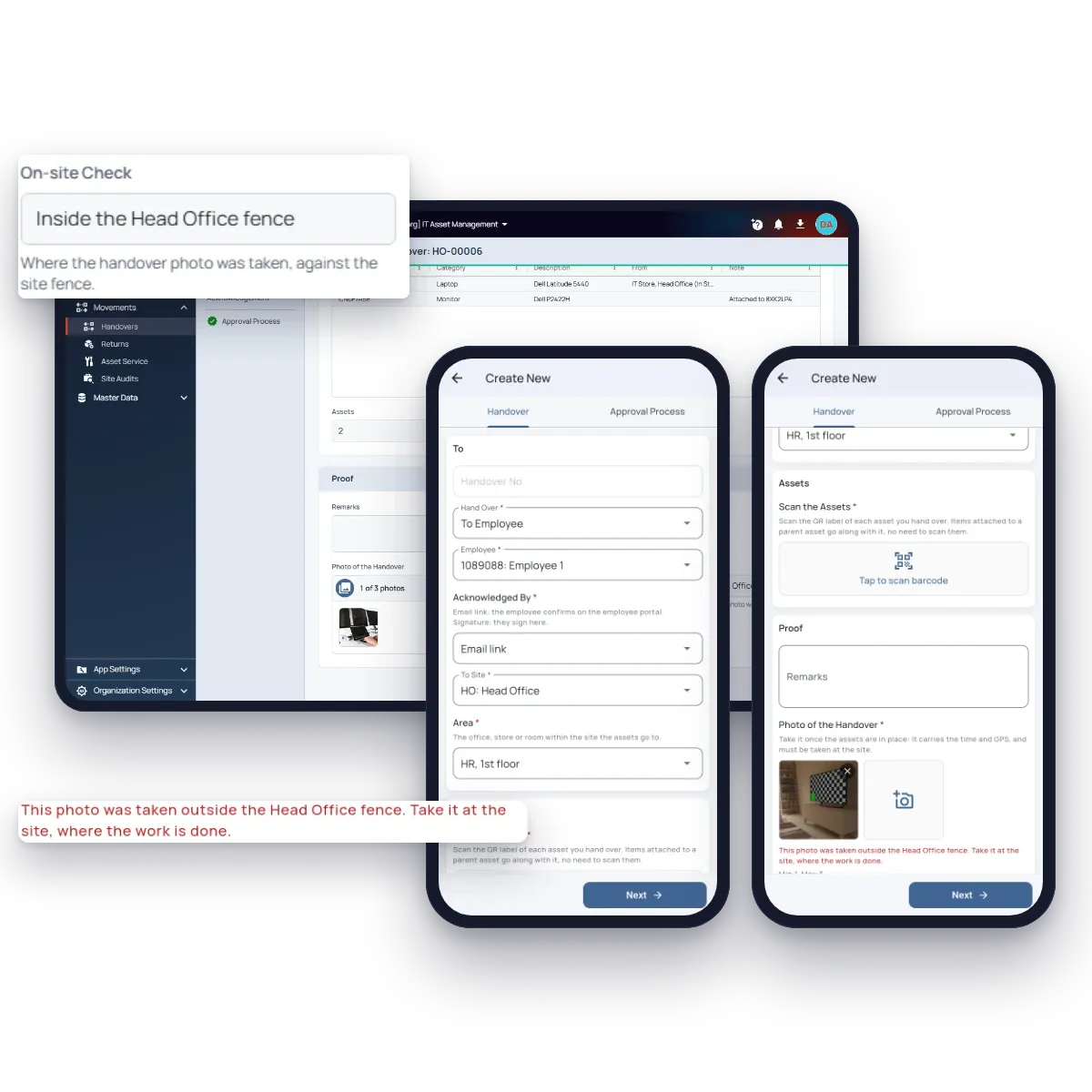
The technician picks the employee and the area on the phone and scans the laptop’s label. Its monitor and dock come along by themselves. The handover ends with a photo of the kit in place, which the phone only accepts inside the site’s fence where you have switched that on.
An employee with a work email gets a link and confirms with a one-time code, or reports a problem that sends the handover back to IT. An employee without email signs on the phone. Picking an asset someone else holds transfers it, so the same document moves assets between people and sites.
Step 3
Repairs, Swaps and Re-images Are Scanned at the Asset
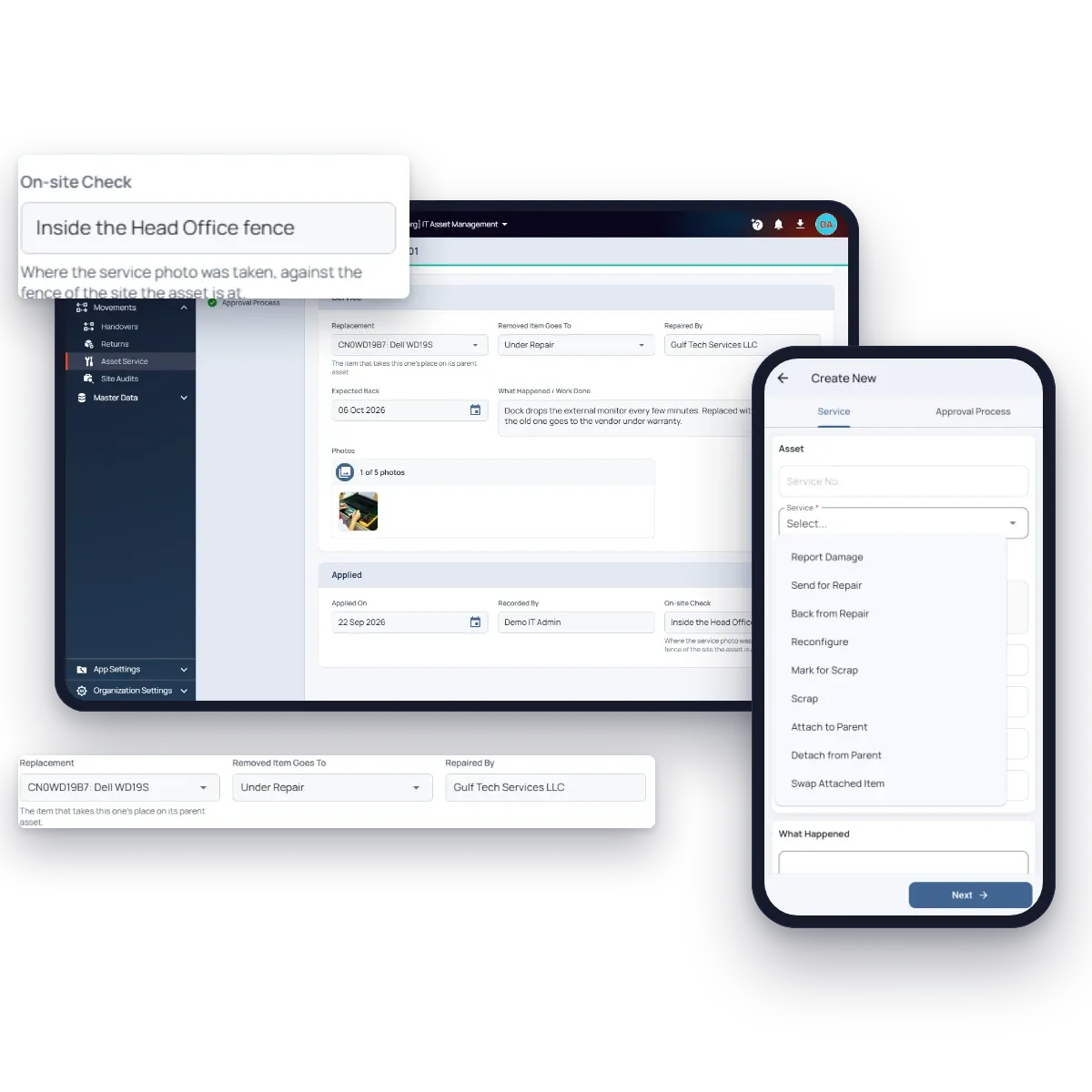
Damage, repairs, re-images, scrapping and swaps are recorded as an asset service: scan the asset, choose what happened and close with a photo of the work. A swap puts the replacement monitor or dock on the same laptop and sends the old one back to the store, for repair or to damaged, with its own history intact.
Scrapping takes an asset off the books, so it goes to the IT administrator for approval. Everything else is recorded straight away.
Step 4
Every Site Audited by Scanning Its Labels
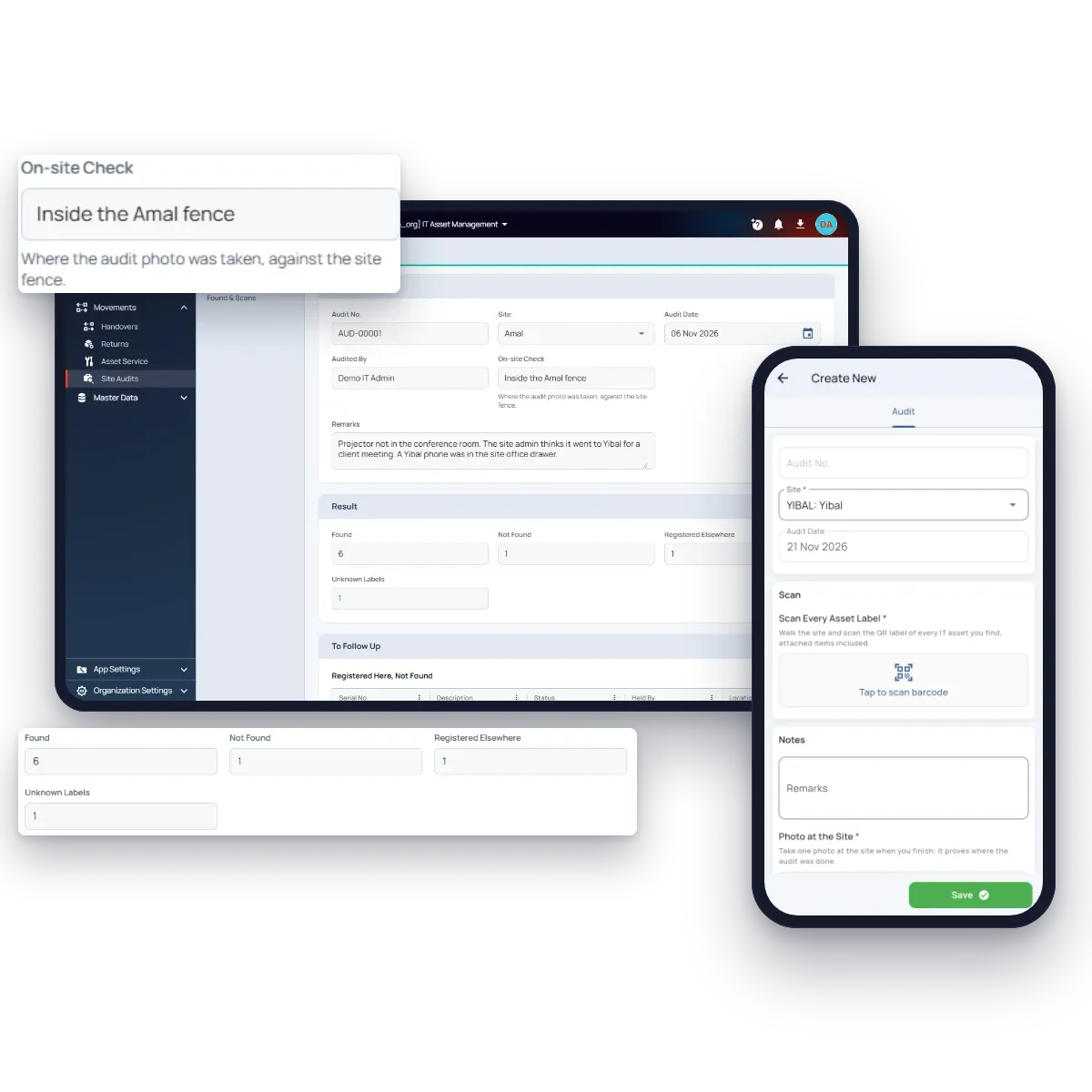
The technician walks the site and scans every label, attached items included, then takes one photo at the site. The audit lists what was found where expected, what is registered at the site but wasn’t found, what turned up from another site and which labels aren’t in the register at all.
An audit only reports. IT follows up with a handover, return or service, so every correction is on its own document.
Step 5
Returns and Leavers Cleared Item by Item
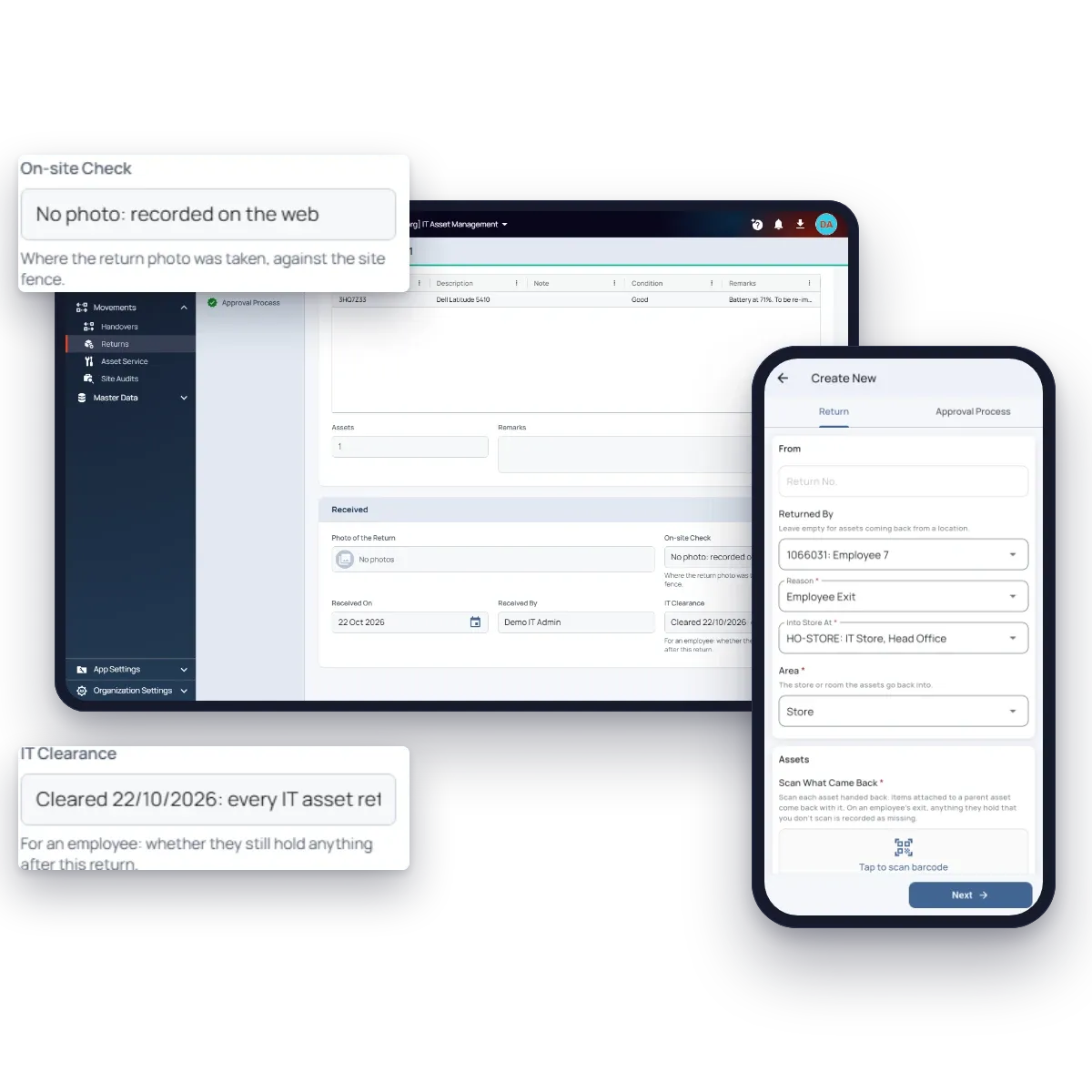
Assets come back into a store with a return: scan what came back, and its attached items come with it. Each item gets its condition, so a good laptop goes back in store and a damaged dock is flagged for IT.
When an employee leaves, the return starts from everything they hold. Anything not handed back is recorded as missing, and IT clearance on the employee says whether everything came back. If it did, the employee is marked as exited.
Step 6
The IT Manager Sees Everything, Every Number Current
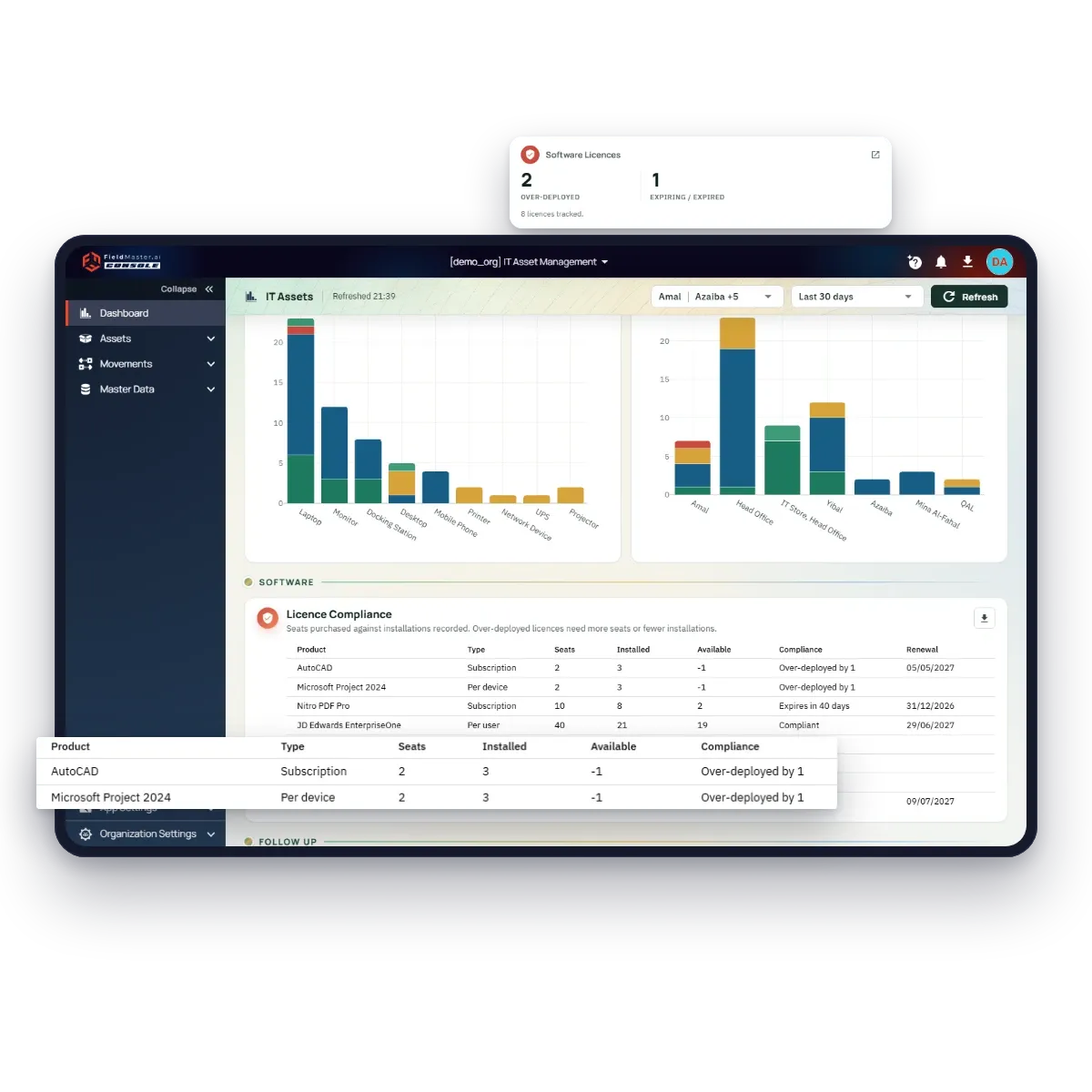
The dashboard shows the assets in service, assigned and in store, those under repair, damaged or waiting for scrap, and the handovers employees haven’t confirmed yet. Charts break assets down by category and by site, and every card opens the list behind it.
Licence compliance compares the seats you bought with the installations recorded, and warns you of over-deployed licences, renewals in the next 60 days and warranties about to end.
FAQ
Questions About the Workflow
How do we label our assets?
Each asset’s QR label carries its serial number, the key of its record. Existing asset number labels keep working, because a scan finds the asset by its serial number or its asset number.
What if GPS is poor at one of our sites?
Each site chooses how strict it is. Where GPS is reliable, the phone refuses a photo taken outside the site’s fence. Where it isn’t, the photo is accepted anywhere, and the record still shows that it was taken outside the fence.
Can someone edit an asset’s location by hand?
No. Site, area, status, holder and attached items are set when the asset is registered, and after that only a handover, return or service changes them. Every change is on a document with a date and a name.
What happens to the history when a monitor is swapped?
Nothing is lost. The swap is on the laptop’s history and on both monitors’ histories, and the removed monitor keeps its own record wherever it goes next.
Can a technician see every site?
Only if you want them to. Each technician gets the sites they look after, and sees only those sites’ assets, employees and documents, on the web and on the phone.
Can we keep doing some work on the web?
Yes. Every document can also be keyed on the web. It then has no on-site photo, and its on-site check says so, so you can see at a glance which records are proven.