

Field AttendanceHow it works
From the Site Fence to the Salary File
You set up your sites, shifts and workers once. From then on, every clock-in is checked on the phone, each site sends you its inspection at clock-out, and everything adds up into each worker’s month.
Step 1
Sites and Fences Are Set Up Once
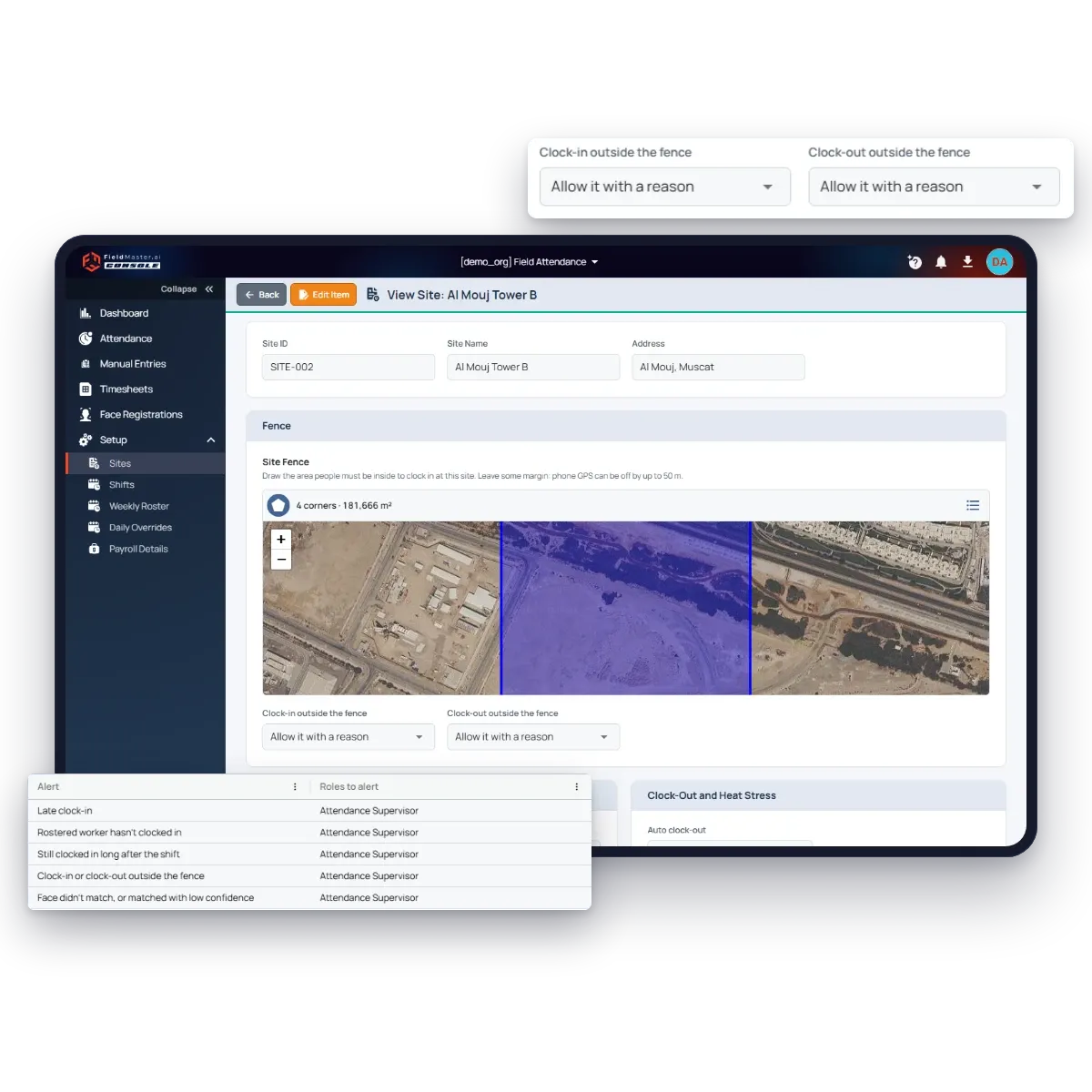
An admin adds each site, such as an office, a tower under construction or a warehouse, and draws its fence on the map: the area people must be inside to clock in there. Phone location can be off by up to 50 m, so the fence is drawn a little wider than the site.
Each site chooses separately for clock-in and clock-out what happens outside the fence: refuse it, or allow it with a reason. Clock-out can also go unchecked, for crews who finish away from the site. Supervisors are added per site, and see only the sites they’re added to. Then you invite your workers, including those without a phone, so each one has an attendance record of their own.
Step 2
Workers Clock In With Their Face, Inside the Fence
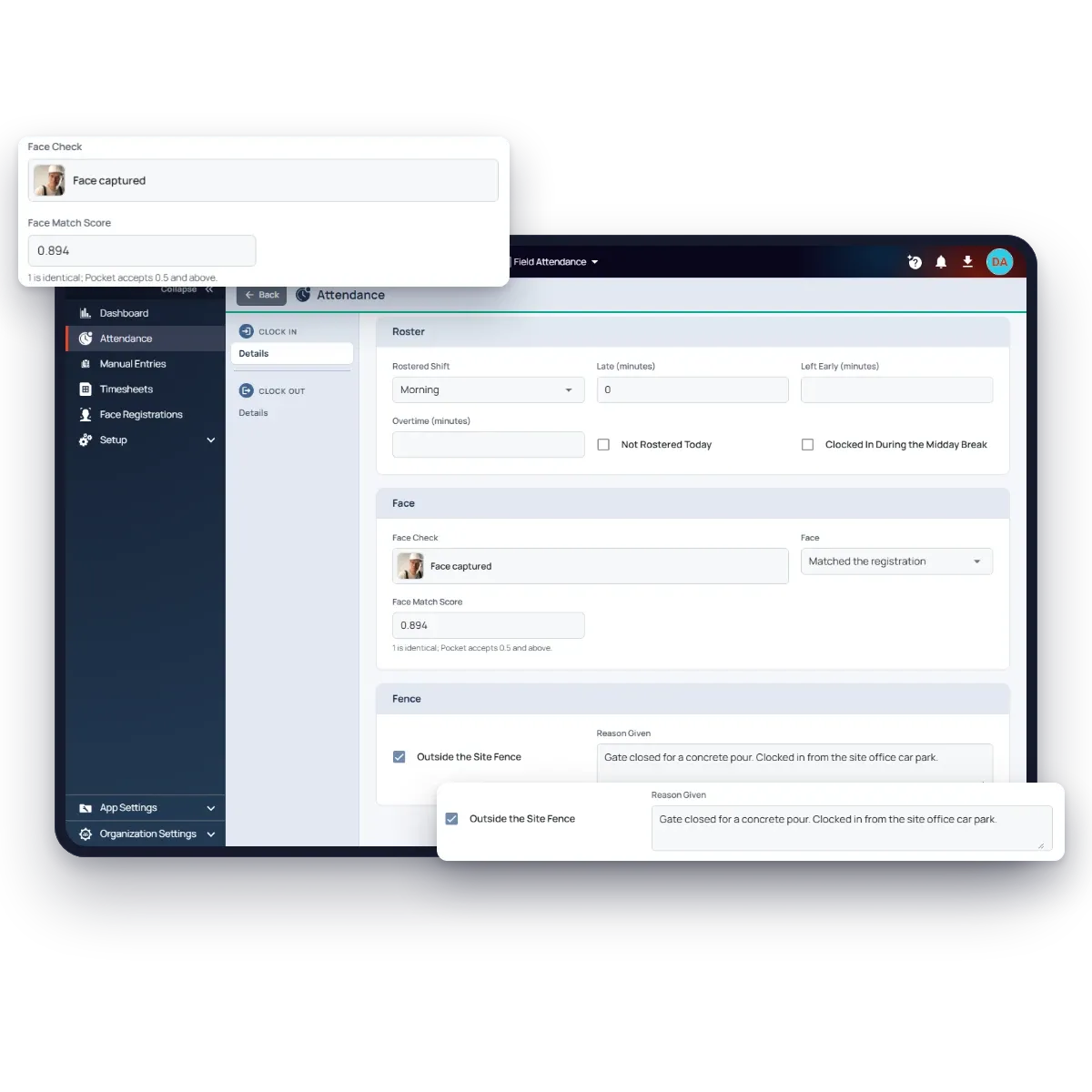
The worker opens Attendance in Fieldmaster Pocket and taps Clock In. The face check asks them to blink and turn their head, takes the photo and records where they are, accurate to about 50 m. Pocket fills in the site whose fence they’re standing in.
The first clock-in registers the worker’s face. Every one after that must match it, or Pocket refuses it and says why. Outside the fence, the site’s rule applies: refused, or accepted with the worker’s reason. The server checks the fence again when the clock-in arrives, and stores the face match score, so the office sees how each clock-in was checked.
Step 3
Supervisors Clock In Crews Without Phones
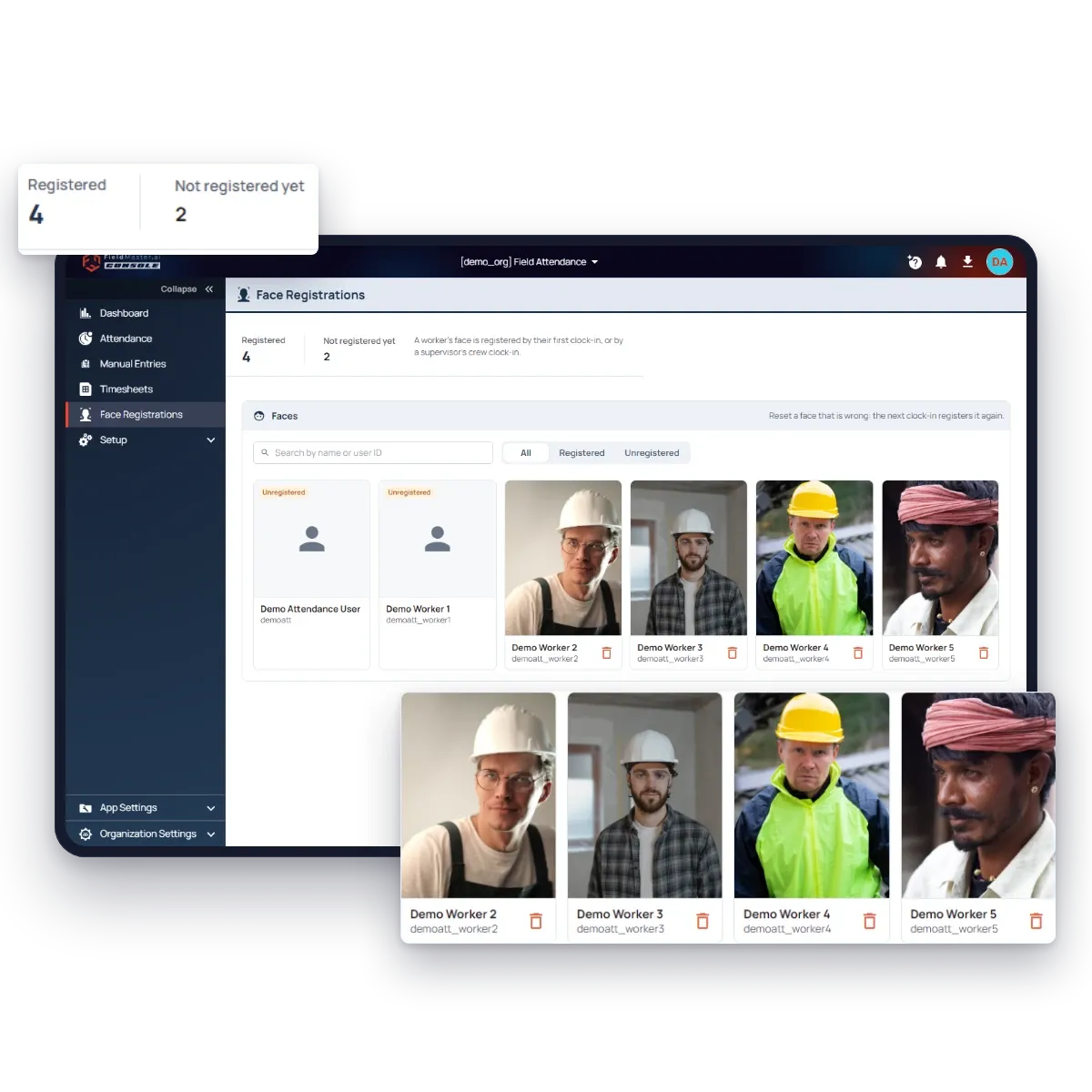
For workers without a phone, the supervisor opens Crew Clock-In, chooses Clock In or Clock Out, and photographs each worker with the back camera. Each face is recognised among the registered workers and fills in the name. A new starter isn’t recognised yet: the supervisor picks them, and that photo becomes their registered face.
On submit, each worker gets their own clock-in, recorded by the supervisor. A face that doesn’t look like the chosen worker is flagged, not refused, and anyone already clocked in is skipped. Every registered face is on one page, where a supervisor checks new registrations and resets a face that is wrong.
Step 4
Supervisors Send a Site Inspection as They Clock Out
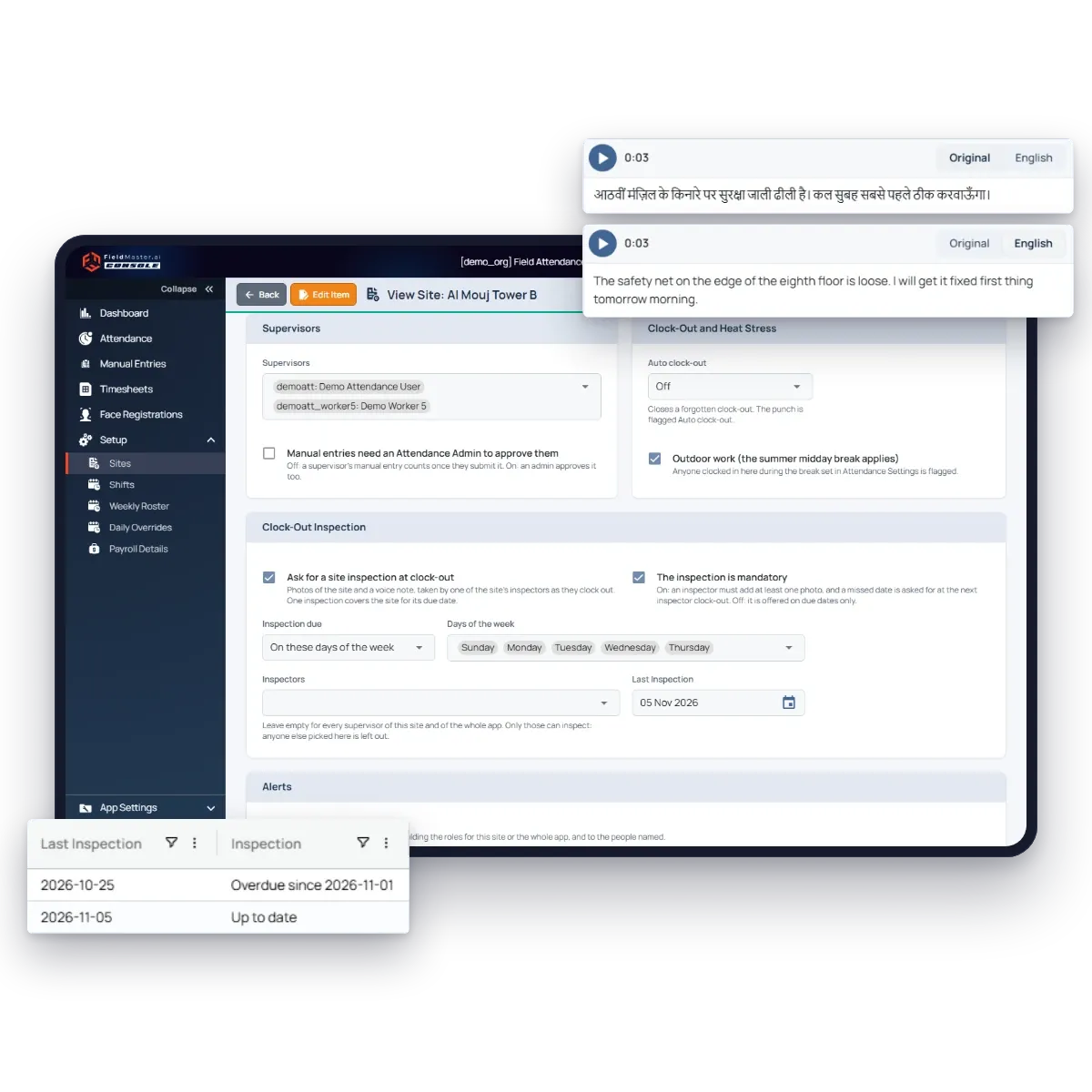
Tick “Ask for a site inspection at clock-out” on a site, and choose when it’s due: every day, on chosen days of the week, or on chosen dates of the month. When it’s due, the site’s inspectors see it as they clock out there: up to 15 photos of the site and a voice note in their own language, which the office reads in English. The inspectors are the site’s supervisors, or only the people you pick.
One inspection covers the site for its due date, from whichever inspector clocks out first. If it’s mandatory, nobody due to inspect can clock out without a photo, and a date nobody covered is asked for at the next clock-out. In the console, the clock-out is flagged Site inspection: open it for the photos, the voice note and the date it covered. The Sites list shows which sites are up to date and which are overdue.
Step 5
Rosters Turn Clock-Ins Into Late, Absent and Overtime
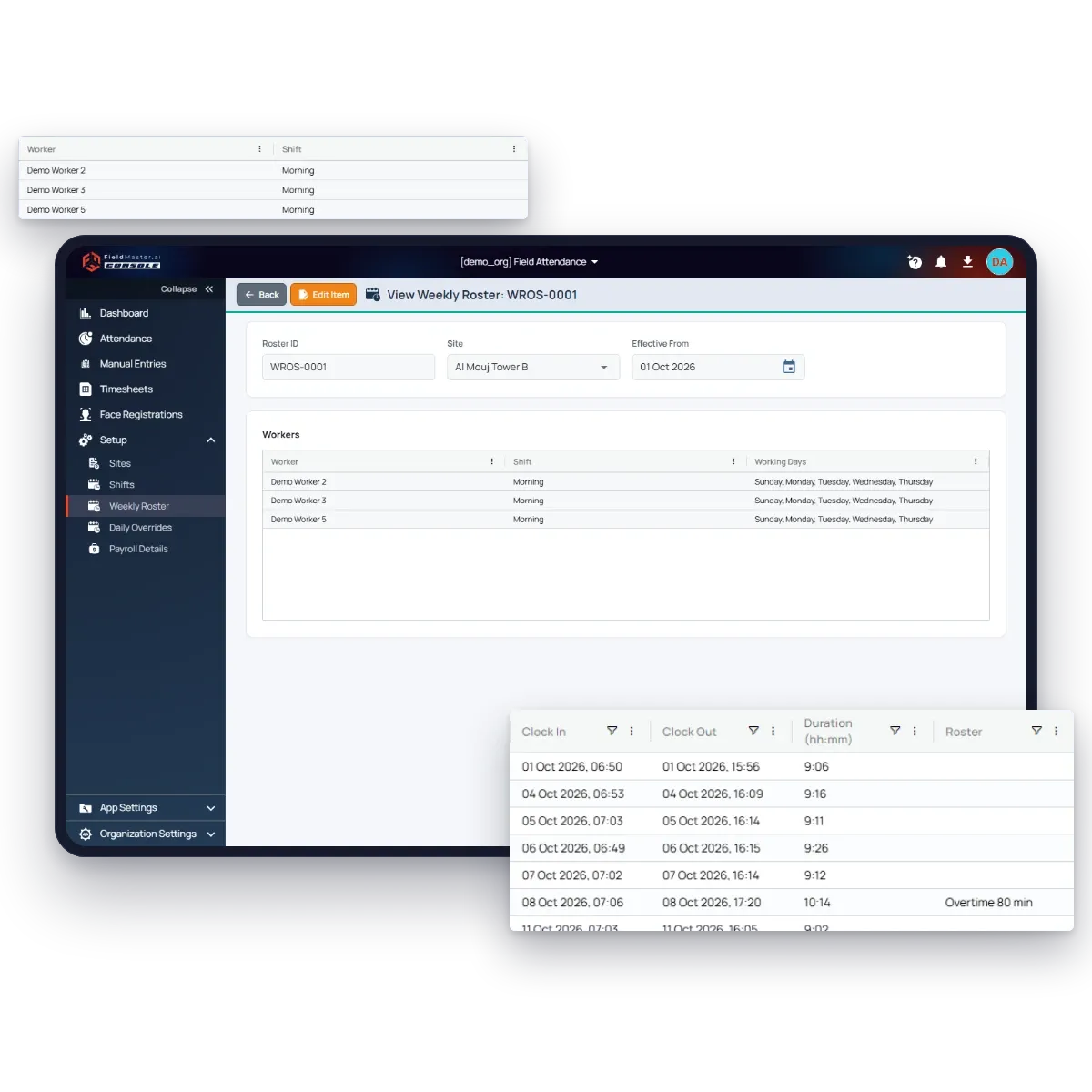
Shifts set your working times, such as Morning 07:00 to 16:00, including shifts that run past midnight and an unpaid break. Each site has a weekly roster: who works which shift, on which days. When a day is different, a daily override sets leave, training or a shift swap for that date.
Every clock-in is compared with the roster as it’s saved. A worker is late only past the grace minutes you set, overtime counts once they stay past your threshold, and a rostered worker with no clock-in is absent once the shift is over. Work on a day off, or with no roster, is shown too.
Step 6
Missed Punches Are Fixed With a Reason, Not a Phone Call
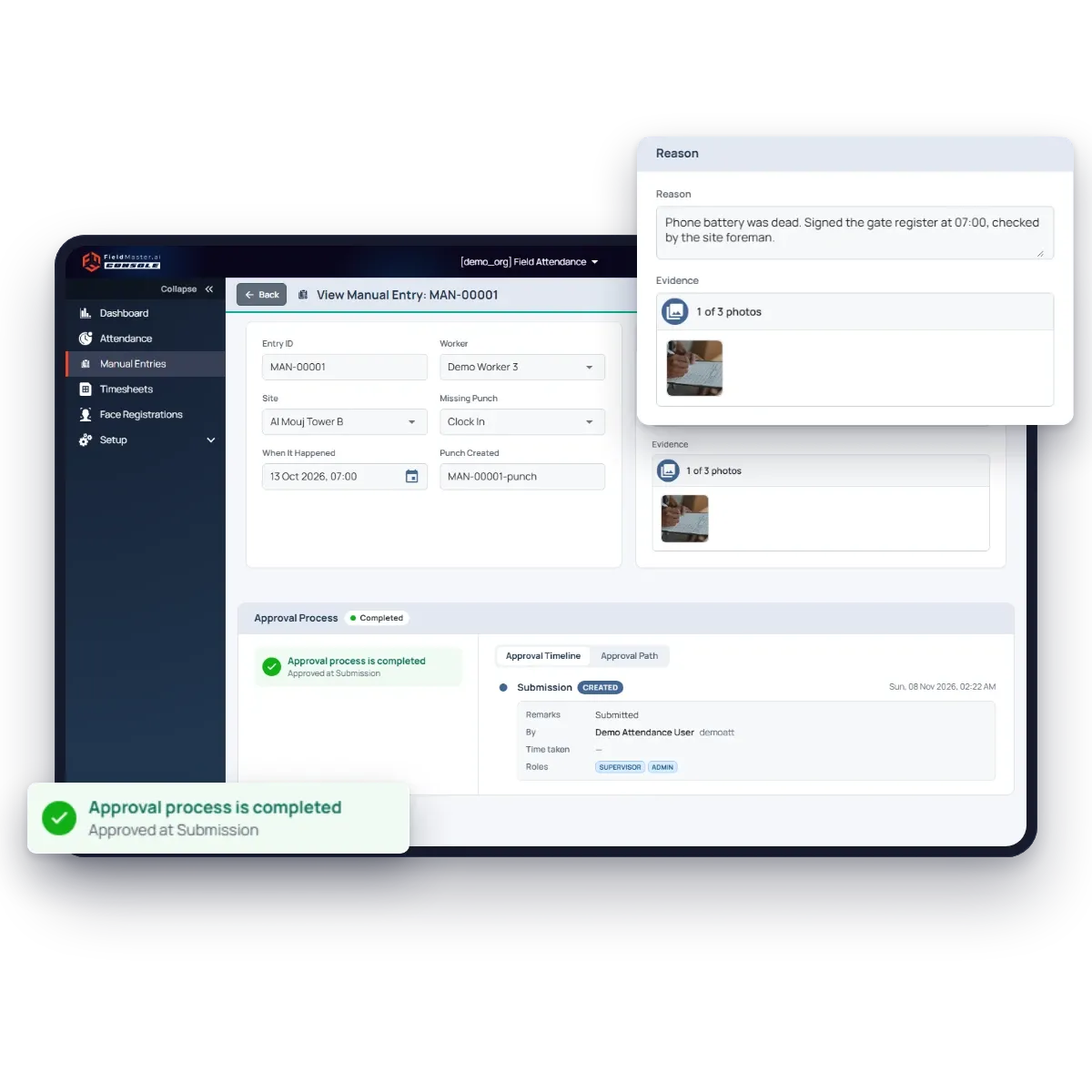
When a worker forgets to clock out or their phone dies, the supervisor adds a manual entry: the worker, the site, the missing punch, when it happened and why, with a photo as proof if there is one. Each site decides whether an admin has to approve it first. Once approved, the punch counts like any other and is marked as a manual entry.
Sites can also close a forgotten clock-out by themselves, a set number of hours after the clock-in or at the end of the shift. If you’d rather not accept missed punches at all, strict mode counts a day with a missing punch as absent.
Step 7
The Office Sees What Needs a Look
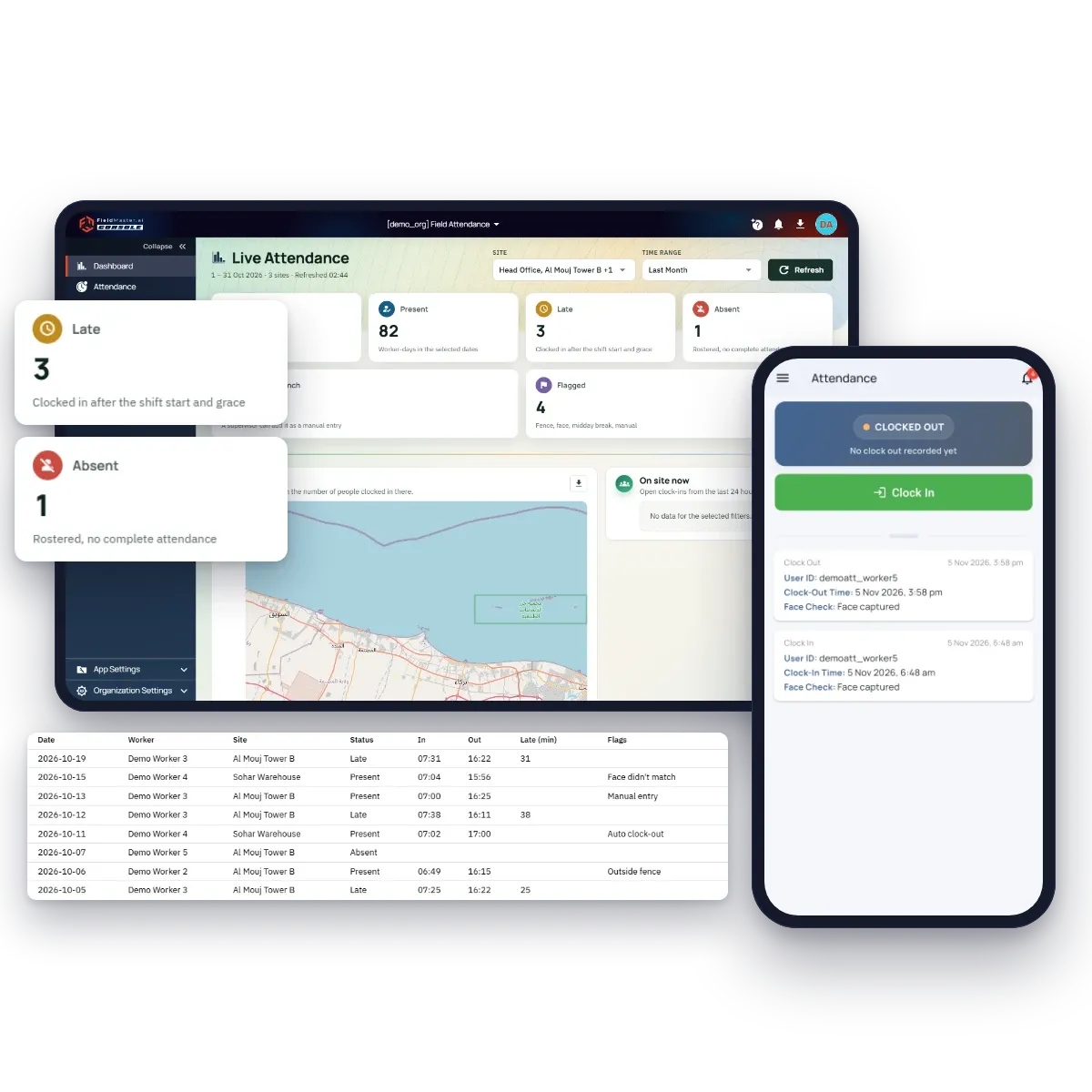
The dashboard shows who is on site right now and how each worker’s day went for the dates you pick: present, late, absent or missing a punch, by day and by site. Exceptions lists only the days that need a look, and supervisors see only their own sites.
Each site sends the alerts you choose, to the roles and people you choose: a late clock-in, a rostered worker who hasn’t clocked in, someone still clocked in long after the shift, a clock-in outside the fence, or a face that didn’t match. Alerts arrive in the console, on Pocket and by email.
Step 8
Month End: Timesheets and the WPS Salary File
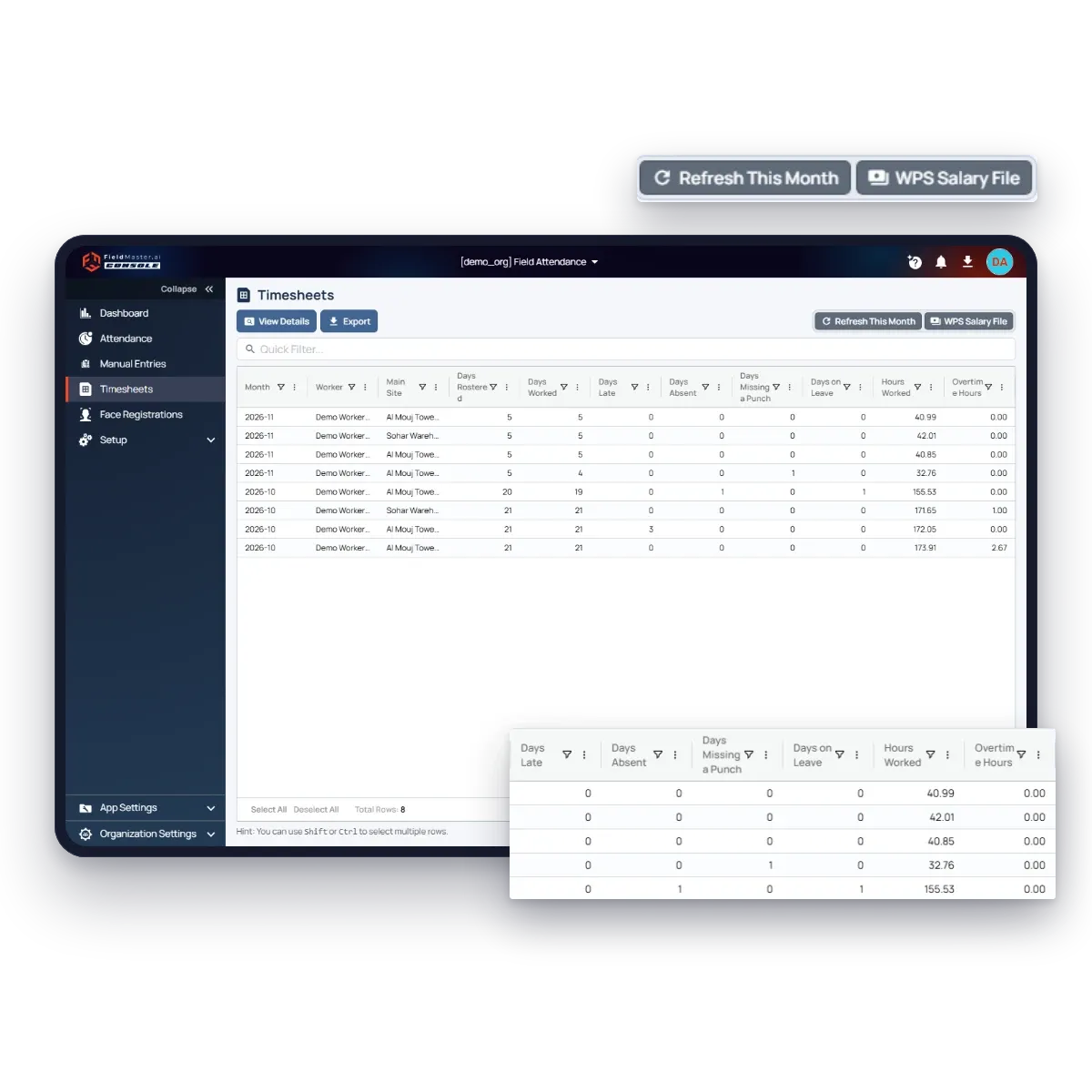
Every night, each worker’s timesheet is worked out from their clock-ins and the rosters: days rostered, worked, late, absent, missing a punch and on leave, hours worked and overtime hours. Nobody types a timesheet. To change a number, you fix what it comes from, and late fixes still count for the first five days of the next month.
Filter to the month, select the workers to pay and download the WPS salary file, in the Oman WPS or UAE SIF format. Salary, bank and ID details are kept per worker, visible to admins only.
Step 9
Your Client Sees the Manpower You Provided
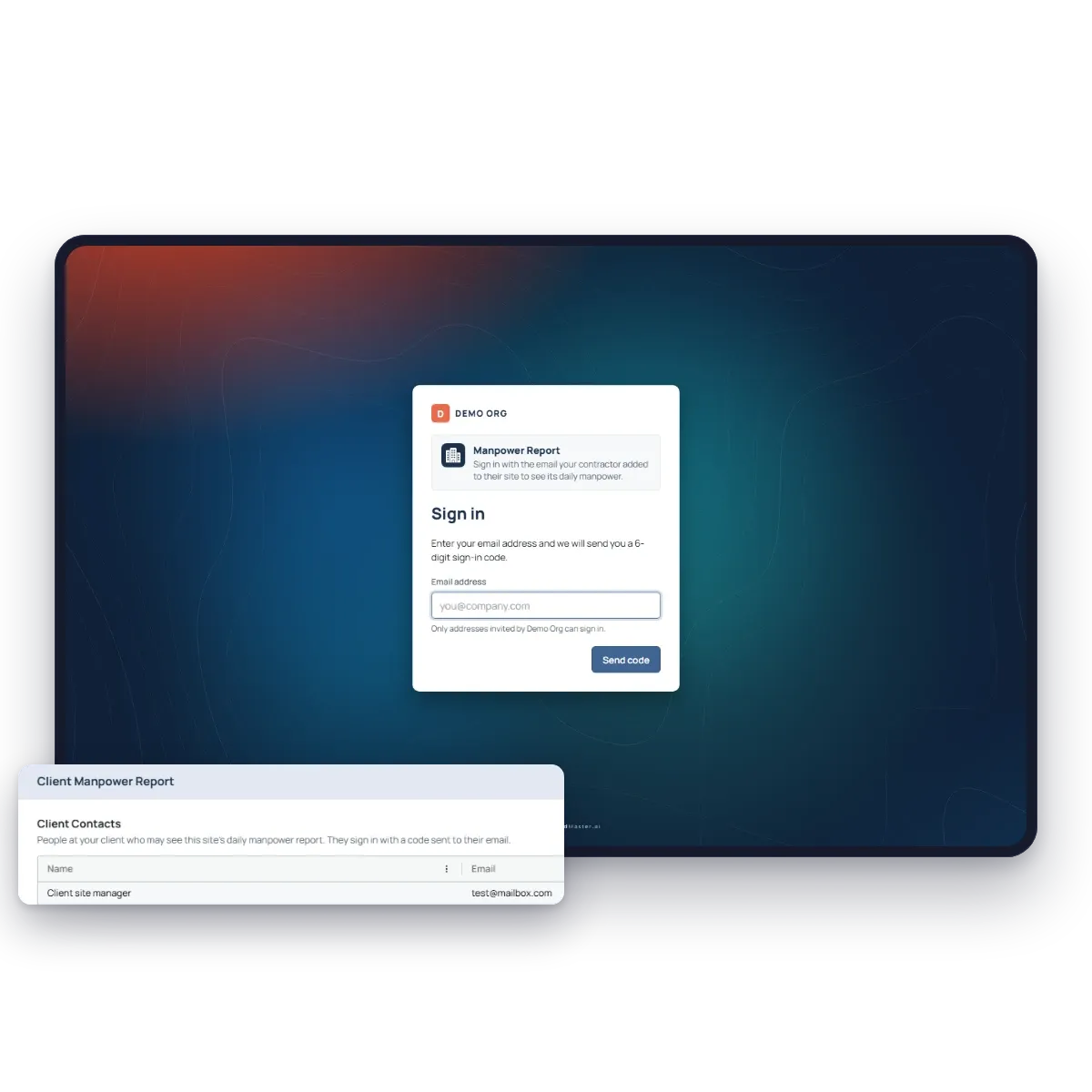
If you supply manpower to a client, add their site manager as a client contact on the site. They sign in with a code sent to their email, with no password, and see the Manpower Report for the sites you shared: worker-days, people and hours for each day of the month, and who worked. They can download it for their own records.
Only people who clocked in and out at the site, checked by face and location, are counted. Remove a contact, and the site disappears from their report.
Getting started
Set It Up Yourself, Site by Site
You don’t need us to start. Sign up, add your first site and your crew, and add rosters and payroll once clock-ins are running.
Sign up
Start your trial with your work email. It includes every feature.
Add sites
Add each site, draw its fence and choose its rules.
Invite your team
Add workers, and the supervisors of each site.
First clock-ins
Workers install Fieldmaster Pocket. Their first clock-in registers their face.
Rosters and payroll
Add shifts and rosters, then payroll details for the WPS salary file.
FAQ
Questions About the Workflow
What happens when a clock-in is refused?
Pocket says why: the face doesn’t match the registered face, the location isn’t accurate enough yet, or the worker is outside a fence that refuses clock-ins. The worker can take the face check again, move inside the fence, or pick the right site.
Can a worker clock in at a site they aren’t rostered at?
Yes. Workers can clock in at any site, and Pocket picks the one they’re standing in. A clock-in away from their rostered site, or on a day they aren’t rostered, is shown as not rostered, so a supervisor can see it.
How is late worked out?
From the shift the worker is rostered on that day: the weekly roster, or that date’s daily override if there is one. They’re late when the clock-in is past the shift start plus the grace minutes you set in Attendance Settings.
What if a worker forgets to clock out?
A supervisor adds a manual entry with the time and the reason, and an admin approves it if the site asks for that. Or the site closes forgotten clock-outs itself, a set time after the clock-in or the end of the shift.
Who can see what?
Workers clock in and see their own attendance. Supervisors see the sites they’re added to, clock crews in, add manual entries and keep the rosters. Admins see everything, including payroll details. Client contacts see only the Manpower Report of the sites shared with them.
Who takes the site inspection?
The site’s inspectors: every supervisor of the site and of the whole app, unless you pick particular people. One inspection is needed per due date, so once one inspector has done it, the others clock out as usual.
Do we get a summer midday break check?
Yes. Mark a site as outdoor work and choose your country’s rule (Oman, UAE, Saudi Arabia, Qatar, Kuwait or Bahrain) or your own hours. Anyone clocked in at that site during the break is flagged, and alerted if you choose.